How to Use Docker Desktop on a MacBook with Apple Silicon Without It Slowing Down
A practical guide to getting the most out of Docker Desktop on Macs with M1, M2 and M3 chips: VirtioFS settings, Rosetta 2, memory, and alternatives like OrbStack or Colima when Docker falls short.
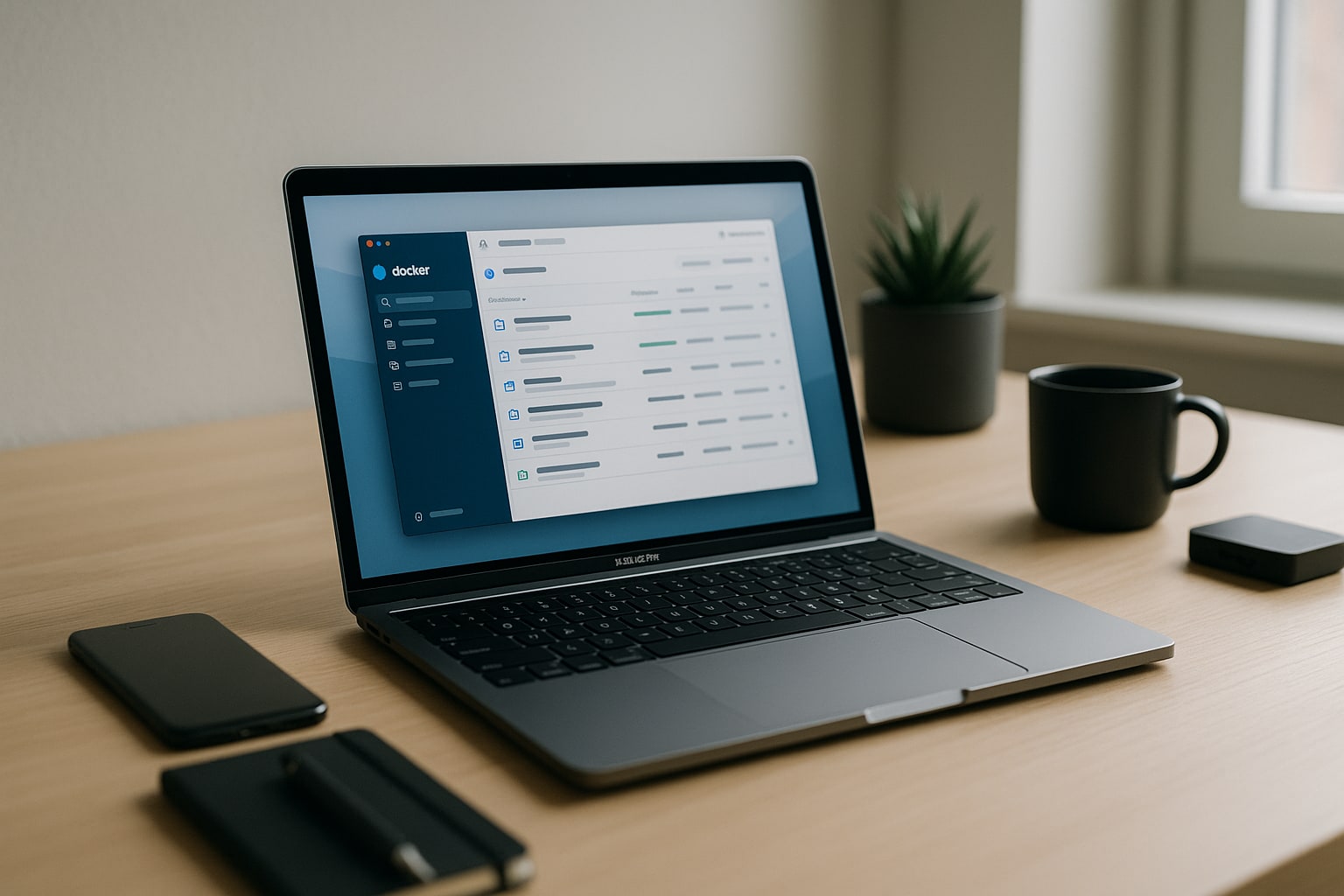
If you work with containers on a MacBook with Apple Silicon, you already know that Docker Desktop doesn’t always run smoothly. It starts slowly, eats up RAM, the fan kicks in when you build a moderately large image, and if your image is linux/amd64, things get worse. This guide covers how to make Docker Desktop usable on an M1, M2 or M3 Mac, which settings to change, when to accept that Docker isn’t the best option, and which alternatives are worth considering.
Everything here has been tested on macOS Sequoia 15.1 with Docker Desktop 4.35 on a MacBook Pro M3 Pro with 18 GB of RAM and a MacBook Air M2 with 16 GB. The principles apply equally to M1.
Why Docker Desktop Runs Slowly on Apple Silicon
Docker doesn’t run natively on macOS. It never has. Docker needs a Linux kernel, and macOS doesn’t have one. What Docker Desktop does is spin up a lightweight Linux virtual machine using Apple’s virtualization framework (Virtualization.framework on Apple Silicon) and run the Docker daemon inside it.
That means two things: there is a constant virtualization layer, and there is a bridge between your macOS file system and the VM’s file system. That bridge has historically been the main bottleneck.
Add to this the linux/amd64 images. Your Mac is ARM64. If you start an x86_64 container, Docker emulates it via Rosetta 2 or QEMU. Emulating an entire architecture has a cost: between 30% and 60% of performance lost depending on the workload.
Prerequisites
- macOS 13 Ventura or later (Sequoia recommended for stable VirtioFS).
- Docker Desktop 4.25 or later. 4.35 brings notable improvements in resource management.
- A Mac with an M1, M2, M3 chip (or newer) and at least 16 GB of RAM if you plan to run more than two containers at once.
- Rosetta 2 installed:
softwareupdate --install-rosetta --agree-to-license.
Installing Docker Desktop on an Apple Silicon Mac
Download the Apple Silicon installer from docker.com. Be careful: there are two builds, Intel and Apple Silicon. If you download the Intel one by mistake, everything will go through Rosetta and you’ll lose performance for no reason.
Drag the app to /Applications, open it, accept the privileged network permissions, and wait for the whale icon to appear in the menu bar.
Key Settings to Keep Docker from Slowing Down
This is where 80% of the article lies. These are the settings that make a real difference.
Enable VirtioFS as the File System
VirtioFS replaced gRPC-FUSE. It is between 2x and 5x faster reading and writing to volumes mounted from macOS. It is now the default, but if you have an older installation you may still be using gRPC-FUSE.
Path: Docker Desktop → Settings → General → Virtual Machine Options → VirtioFS.
Restart Docker after changing it. You’ll notice the difference in any Node, PHP or Python project that mounts node_modules or vendor from your local folder.
Use Apple’s New Virtualization Framework
On the same screen, check Use Virtualization framework (Apple’s, not QEMU). It takes advantage of the hardware acceleration of the M chip.
And right below it, enable Use Rosetta for x86_64/amd64 emulation. This replaces QEMU emulation with Rosetta 2 when you run amd64 images. The improvement for x86_64 images is dramatic: in tests with amd64 MySQL 8 containers, startup dropped from 40 seconds to under 15.
Adjust CPU, Memory and Disk Resources
Path: Settings → Resources → Advanced.
By default Docker Desktop is allocated a conservative fraction. On a 16 GB Mac, raise memory to 8 GB if you’ll work with databases. On one with 18 GB or more, between 8 and 10 GB. Don’t exceed 50% of total RAM: macOS needs room to breathe.
CPU: leave at least 2 cores free for the system. On a 12-core M3 Pro, allocating 8 to Docker is no problem.
Disk: the virtual disk grows on demand. Set a reasonable cap (64 GB is usually enough) and purge old images with docker system prune -a every two weeks.
Disable Features You Don’t Use
In Settings → General, uncheck Send usage statistics, Open Docker Dashboard at startup if you don’t need it, and SBOM indexing if you don’t analyze vulnerabilities. Each one consumes cycles.
In Settings → Kubernetes, leave Kubernetes disabled unless you truly use it. A local K8s cluster eats 2 GB of RAM even if you do nothing.
Work with ARM64 Images Whenever You Can
The fastest way to make Docker fly on your Mac is not to emulate anything. Many official images already have linux/arm64 builds: PostgreSQL, Redis, Nginx, Node, Python, Ruby, Go, most modern databases.
Check the available architectures before pull:
docker manifest inspect postgres:16 | grep architecture
If you see arm64, pull from there without forcing a platform. If only amd64 exists, then you do need Rosetta.
To force a specific platform:
docker run --platform linux/arm64 postgres:16
docker run --platform linux/amd64 mysql:5.7
In your docker-compose.yml, add platform: linux/arm64 to each service to avoid surprises.
When Rosetta 2 Saves the Day and When It Doesn’t
Rosetta 2 works well for static binaries and applications doing general-purpose computation. For older databases, legacy tools or corporate images that only exist for amd64, enabling Rosetta gets you out of trouble.
Where Rosetta still struggles: heavy I/O workloads, older JVMs (Java 8 amd64 can crash) and some binaries that make exotic syscalls. If an amd64 container gives you odd errors with Rosetta enabled, try disabling it and falling back to QEMU just for that case.
Optimizing Volume Usage
Mounting macOS folders inside the container remains the most expensive operation, even with VirtioFS. Three rules:
- Don’t mount
node_modules,vendoror.gitif you can avoid it. Use named Docker volumes for those directories: they live inside the VM and are orders of magnitude faster. - Use
:delegatedor:cachedon mounts that don’t need strict consistency. With VirtioFS the impact is smaller than before, but it still exists. - Avoid massive file watchers. If your framework recompiles every time you change a file, limit the watched paths.
Example of a named volume for node_modules:
services:
  app:
    build: .
    volumes:
      - .:/app
      - node_modules:/app/node_modules
volumes:
  node_modules:
Alternatives to Docker Desktop on Mac
Docker Desktop isn’t the only option, and in some cases it isn’t even the best. Three serious alternatives:
OrbStack
OrbStack is the closest thing to “Docker Desktop but fast”. It uses less RAM (it starts at around 400 MB versus Docker Desktop’s 1.5 GB), starts in 2-3 seconds and uses its own virtualization implementation on Apple Silicon. It is compatible with the Docker CLI without changes.
It costs 8 dollars a month for commercial use, free for personal use. If you work with containers all day, it pays for itself in battery saved.
Colima
Colima is free, open source and command-line based. It spins up a Linux VM with Lima and exposes a Docker socket. No graphical interface at all.
Installation:
brew install colima docker
colima start --cpu 4 --memory 8 --vm-type vz --vz-rosetta
The --vz-rosetta flag enables Rosetta for amd64. Ideal if you live in the terminal and don’t want an app running permanently.
Podman
Podman is Red Hat’s approach: daemonless, rootless, Docker CLI-compatible via aliases. On Apple Silicon it works well, but its image ecosystem and its integration with tools like docker-compose are still less polished.
Good if you come from RHEL environments or want to align with production on Kubernetes/OpenShift.
Useful Commands for Diagnosing Performance
See which container is eating resources:
docker stats
See the real size of images, containers and volumes:
docker system df
Clean up everything that isn’t in use (careful, this deletes images with no associated container):
docker system prune -a --volumes
Common Problems and How to Fix Them
Docker Desktop won’t start after a macOS update. Restart the service: killall Docker && open /Applications/Docker.app. If it persists, go to Troubleshoot → Reset to factory defaults.
The fan spikes when building images. Reduce the CPU allocated to Docker in Settings → Resources. If it’s still the same, check whether your Dockerfile has RUN steps with processes that parallelize (npm install, cargo build).
Mounted volumes are extremely slow. Verify that VirtioFS is active and consider moving heavy directories to named volumes.
An amd64 container won’t start. Check that Rosetta is installed (arch -x86_64 uname -m should return x86_64). If it still fails, that specific binary isn’t compatible with Rosetta 2; use QEMU by disabling the Rosetta option.
Docker Desktop uses 3 GB of RAM at rest. This is normal in older versions. Update to 4.30 or later; the dynamic memory manager returns RAM to the system when no containers are running.
FAQ
Can I use Docker Desktop for free at work? No, if you work at a company with more than 250 employees or more than 10 million dollars in annual revenue. For personal use, education and small startups, yes. Check Docker’s official license.
Is it worth switching to OrbStack? If you use containers daily and are bothered by Docker Desktop’s resource usage, yes. For occasional use, Docker Desktop does the job.
Does Rosetta 2 perfectly emulate any amd64 image? No. It covers most cases, but very specific binaries (old JVMs, tools with complex SIMD) can fail. QEMU is the backup plan.
Can you run Kubernetes on an M3 Mac without it dying? Yes, but better with minikube or k3d than with Docker Desktop’s built-in Kubernetes. Both are lighter. If you need a full development environment with Windows and Linux at the same time, you may want to take a look at how to install Windows 11 ARM on an M3 Mac with Parallels Desktop 20.
How much RAM do I really need to work comfortably with Docker? 16 GB is the decent minimum. 24 GB or more if your stack simultaneously includes a database, backend, frontend and some auxiliary service. If you’re thinking of changing machines, check the comparison between MacBook Pro M4 Pro and M4 Max before deciding.