How to Use GarageBand on Mac to Record a Podcast from Scratch
A practical guide to recording, editing and exporting your podcast in GarageBand with specific settings for microphone, EQ, compression and bitrate. No fluff, just real steps.
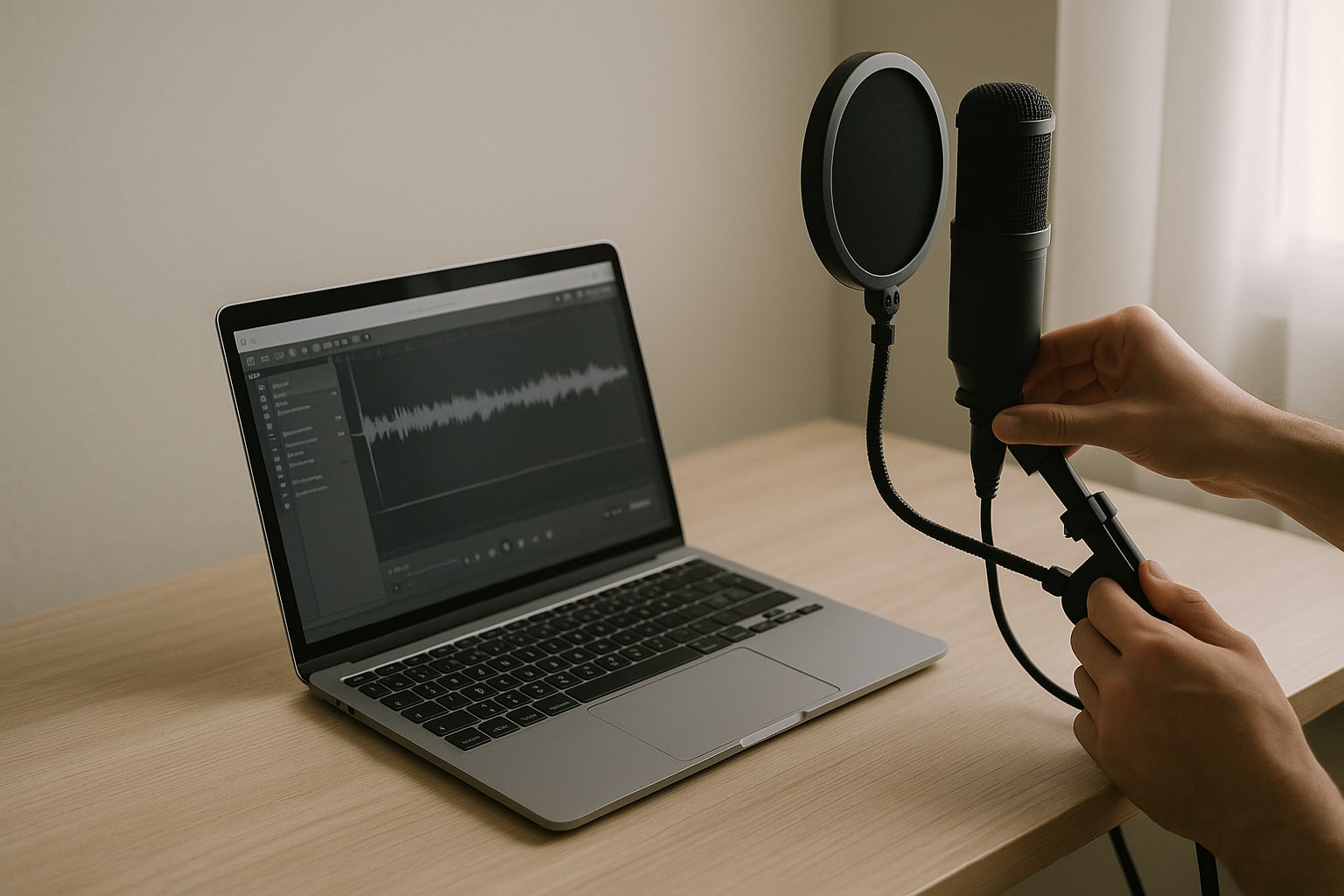
GarageBand isn’t Logic Pro, but for recording a podcast with one or two voices it’s more than enough. It comes free with any Mac, takes up little space and handles the basics well: multitrack recording, decent EQ and compression plugins, and export to MP3 or AAC in a couple of clicks.
In this guide you’ll set up a podcast from scratch: microphone setup, template, recording, editing, mixing and exporting with specific settings. I’m assuming you have a Mac with macOS Sonoma 14 or later and GarageBand 10.4 or newer. Estimated time: 30-45 minutes the first time, much less once you’ve got the hang of it.
Why GarageBand for podcasting (and when not to)
GarageBand covers 90% of what a conversational podcast needs: recording two or three tracks, cutting silences, adding a musical intro, applying EQ and compressor, and exporting to MP3. That’s it.
When does it fall short? If you need remote recording with studio-quality audio (that’s where you’d use Riverside or SquadCast), if you do very fine editing with complex crossfades, or if you want batch processing of many episodes. For that, there’s Logic Pro (€229 one-time on the Mac App Store, checked September 2026) or Reaper ($60 with a personal license).
For a weekly podcast recorded at home with one or two microphones, GarageBand works perfectly.
Prerequisites
- Mac with macOS Sonoma 14 or later. It also runs on Ventura, but some plugins work better on newer versions.
- GarageBand 10.4.11 or later (free on the Mac App Store).
- USB microphone or audio interface with an XLR microphone.
- Closed-back headphones (this stops the reference audio from bleeding into the mic).
- Free space: about 500 MB per hour of recording at standard quality.
If your Mac is a MacBook Air M1 or newer, you won’t have performance problems even with 8 tracks open.
Choosing and connecting the microphone
To get started, a USB microphone like the Shure MV7+ (€279 at the Apple Store Spain, September 2026) or the Rode PodMic USB (€199) will solve the problem. If you already have an audio interface, a dynamic XLR mic like the Shure SM7B or the Rode PodMic (€99) sound better and isolate room noise more effectively.
Avoid using the MacBook’s built-in microphone for anything other than a test. It sounds metallic and picks up everything happening around you.
Connect the microphone before opening GarageBand. That way it’s available from startup.
Setting up the microphone in macOS
Before touching GarageBand, check that macOS recognizes it:
- Go to System Settings → Sound → Input.
- Select your microphone from the list.
- Speak at a normal volume and watch the meter. It should move between 60% and 75% when you speak loudly, without reaching the top.
- Adjust the Input volume until it gets there.
If the microphone doesn’t appear, unplug it and plug it back in. If it’s USB-C and you’re using a cheap hub, try connecting it directly to the Mac: cheap hubs introduce electrical noise.
Creating a new “Voice” project
Open GarageBand and choose Empty Project. In the new track window, select Voice → Record with Microphone. At the bottom, adjust:
- Input: your microphone (not “Built-in Input”).
- Output: your headphones.
- Input monitoring: enabled only if you listen with closed-back headphones. With speakers it will feed back.
Click Create. You now have the first track.
Go to GarageBand → Settings → Audio/MIDI and confirm that the input and output devices are the correct ones. Here you also set the sample rate: leave it at 44,100 Hz for podcasting. Use 48 kHz only if you’re integrating with video.
Podcast template: the tracks you need
For a two-voice podcast I recommend this structure:
- Voice 1 (main host).
- Voice 2 (guest or co-host).
- Intro / Outro (music).
- Stingers / SFX (effects, transitions).
To add new tracks: Track → New Track (⌥ + ⌘ + N) and choose “Record with Microphone” for voices or “Drummer / Loops” for music (although normally you’ll drag in your own MP3 or WAV files).
Save the project now (⌘ + S) as a base template. For the next episode, go to File → Save As and reuse it.
Recording settings: levels, monitoring and countdown
On each voice track, check the level meter in the Smart Controls inspector (B to show/hide it). When speaking normally, the peak should be between -18 dB and -12 dB. Never close to 0 dB.
Turn on the countdown under Record → Count In or press ⇧ + K. It gives you one bar of margin before starting.
Turn off the metronome (K) for podcasting. You don’t need it and it’s distracting.
If you record with two microphones at once, each track has to point to a different channel on your interface. In the track inspector, change the input to “Input 1” on one and “Input 2” on the other. Turn on the red record enable button on both tracks.
Recording: the real workflow
Press R or the red button to record. Spacebar to stop.
Tips you only learn by recording:
- Leave 10 seconds of silence at the start. They’re useful for sampling the background noise if you want to reduce it later.
- If you stumble, don’t stop. Clap sharply (it shows up as a spike in the waveform) and repeat the sentence. In editing you find the spike and cut.
- Record each topic block separately if the episode is long. It makes editing easier.
- ⌘ + Z undoes the last complete take.
If you’re recording remotely with a guest over video call, GarageBand can’t capture audio from other apps directly. For that you need a utility like BlackHole or Loopback. I plan to cover that in detail, but for now this guide on how to record screen with internal audio on macOS without third-party apps will help you understand how macOS routes audio.
Editing: cutting silences, removing noise, adjusting volumes
Zoom with ⌘ + right arrow to zoom in. ⌘ + T splits the region at the cursor position.
Basic editing workflow:
- Listen to the whole thing once and mark points with ⌘ + T where there are stumbles.
- Select the bad fragments and Delete.
- Join nearby regions by dragging one over another.
- For long silences between sentences, cut them and drag the right region to the left.
To lower specific points (a cough, a desk knock), turn on volume automation: press A. A yellow line appears on the track. Click to create points and drag down to lower the volume at that moment.
GarageBand doesn’t have a powerful built-in noise reducer. If the audio has a lot of background noise, export the raw track, run it through Audacity (free) with “Noise Reduction”, and re-import the clean WAV.
Applying EQ and compression to voices
With the track selected, open the Smart Controls (B). You’ll see plugin presets. Click the preset name and choose Voice → Natural Podcast or Voice → Bright Male/Female Voice.
If you want to fine-tune by hand, open the mixer (X) and enable the Channel EQ and Compressor plugins:
Recommended EQ for voice:
- High-pass filter at 80 Hz (removes rumble and room noise).
- Slight cut of -3 dB at 250-400 Hz if the voice sounds “muddy”.
- Gentle boost of +2 dB at 3-5 kHz for clarity.
- Very slight boost of +1 dB at 10 kHz for “air”.
Compressor:
- Ratio: 3:1 or 4:1.
- Threshold: adjust it so it reduces -4 to -6 dB on the peaks.
- Attack: 10 ms.
- Release: 80-100 ms.
- Make-up gain: raise it until the level matches what it was before compression.
The goal is for the voice to sound stable, without sudden rises and drops in volume. Don’t overdo it: an over-compressed podcast is tiring.
Adding intro, stingers and background music
Drag your music file (MP3, WAV or AIFF) directly onto the “Intro / Outro” track. GarageBand creates the region automatically.
To make the music lower when the voice comes in (ducking):
- Select the music track.
- Menu Mix → Ducking.
- Mark the music track as “follower” and the voice tracks as “leader”.
When you speak, the music lowers on its own. Adjust the reduction level with the ducking knob.
For fades, select a region and go to the menu Mix → Create Fade In / Fade Out. Or drag the top corners of the region.
Final mix: volumes and master
Before exporting, check the overall master level. In the mixer (X), the Master fader shouldn’t go above -3 dB on peaks.
To make sure it doesn’t clip, add a limiter on the Master track: double-click the plugin slot on the Master channel → Dynamics → Limiter. Set the output to -1 dB. It’s an insurance policy.
Listen to the whole episode from start to finish at least once. If something sounds off, fix it now.
Exporting: formats, bitrate and metadata
Menu Share → Export Song to Disk.
Recommended settings for podcasting:
- Format: MP3. It’s what all platforms accept.
- Quality: High quality (192 kbps) for voice + music. If it’s only voice, 128 kbps is enough.
- Stereo or mono: mono if it’s a single voice without music; stereo if there’s music or several voices.
Fill in the metadata before exporting under File → Project Info: title, artist (podcast name), album (season), track number.
If your hosting platform accepts AAC, exporting in AAC at 96 kbps gives you better quality at the same file size. Spotify and Apple Podcasts accept it without problems.
Publishing the episode
GarageBand doesn’t publish directly to podcast platforms. Upload the MP3 to your host: Spotify for Podcasters (free), Transistor ($19/month), Fireside ($19/month) or Anchor. They generate the RSS feed you submit to Apple Podcasts, Spotify and others.
Always keep the original project (.band) in addition to the exported MP3. If you need to remaster or fix something, you’ll be glad you did.
Common problems
The microphone isn’t heard when recording: check that the track has input monitoring enabled (the yellow speaker icon). And that your headphones are selected as output.
You hear echo or feedback: you’re monitoring through speakers. Use headphones or turn off monitoring.
GarageBand freezes (“thinking”) when applying plugins: too many tracks with real-time effects. Freeze tracks: right-click the track → Freeze Track.
The exported MP3 sounds quiet compared to other podcasts: missing compression or limiter. Review the mixing section.
My USB interface doesn’t appear: go to GarageBand → Settings → Audio/MIDI and select it manually as the input device.
FAQ
Can I record with two USB microphones at the same time? Not directly. macOS only allows one USB input. Solution: create an aggregate device in Audio MIDI Setup (Applications → Utilities) combining both microphones, and select it as the input in GarageBand.
Does GarageBand export to WAV? Yes. Under Share → Export Song to Disk, change the format to AIFF or WAVE. It takes up more space but keeps full quality if you’re going to master in another app.
How much space does an exported 60-minute episode take up? In MP3 at 128 kbps: about 55 MB. At 192 kbps: about 82 MB. In AAC at 96 kbps: about 42 MB.
Can I move the project to Logic Pro later? Yes. Logic opens .band files directly, keeping tracks, regions and automation. GarageBand plugins also work in Logic.
Is Logic Pro worth it just for podcasting? If you make a weekly podcast and want faster editing (markers, track groups, automatic strip silence), yes. If you record one episode a month, GarageBand is more than enough.