How to Use Affinity Photo 2 on iPad as a Serious Photoshop Replacement
A practical guide to working with Affinity Photo 2 on iPad as a professional alternative to Photoshop: one-time payment, PSD compatibility, RAW workflow and real-world performance on the iPad Pro M4.
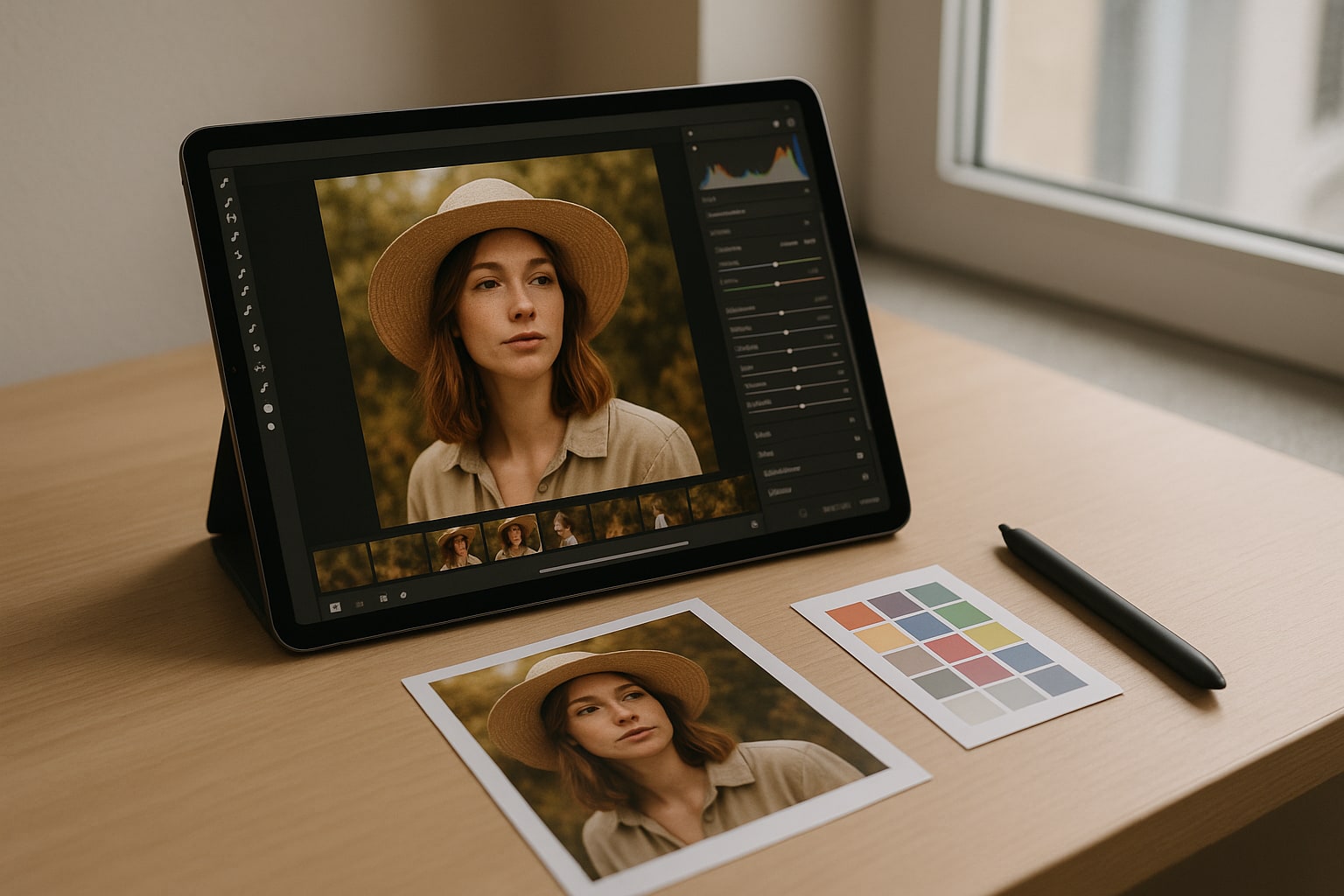
Adobe Photoshop has long been installed as the standard for photo editing, but its iPad version is still a stripped-down version of the desktop program, and on top of that it requires a mandatory subscription. Affinity Photo 2 for iPad offers something different: a one-time payment, virtually all the tools of the desktop program, and native performance on Apple Silicon chips. If you work with photography on iPad and don’t want to pay €24.19/month indefinitely, it’s worth taking seriously.
In this guide you’ll see what you need, how to set up a workflow between iPad and Mac, and where it falls short compared to Photoshop. No hype: there are tasks where Affinity wins and others where Photoshop still leads.
Why Affinity Photo 2 makes sense on iPad in 2026
The strongest argument is the licensing model. Affinity Photo 2 for iPad costs €21.99 on the App Store (one-time payment, checked July 2026). Photoshop on iPad requires a subscription to the Adobe Photography Plan or similar, with a minimum cost of around €12/month that never goes away as long as you use it.
In two months you’ve already paid off Affinity. In a year you’ve saved more than €100. And in five, the difference is overwhelming.
The second argument is that Serif, the company behind Affinity, ported the complete engine of the desktop version to iPad. It is not a “lite” app. You work with layers, masks, non-destructive adjustments, RAW development, HDR merge, panoramas, frequency separation for skin retouching and live filters. Feature parity with the macOS version is around 95%.
Requirements: iPad and iPadOS
Affinity Photo 2 requires iPadOS 16 or later. In practice it runs well on any iPad with an A12 Bionic chip or later, but if you want to work with large files (45 MP RAW, documents with 30+ layers, 16-bit maps), forget about basic iPads.
My recommendation by use:
- iPad Pro M4 (2024) or iPad Pro M2: the reference experience. With 8 GB or 16 GB of RAM you can open files over 2 GB without choking.
- iPad Air M2: perfect for 90% of workflows, including RAW and advanced retouching.
- iPad (10th gen) or iPad mini 6: fine for occasional retouching, not for long sessions with many layers.
If you’re torn between models, this analysis of iPad Air M2 vs Galaxy Tab S10+ will help you decide whether the Air is worth it or whether you need to move up to the Pro.
Add an Apple Pencil Pro or Pencil 2 depending on your model. Without a pencil, half of the proposition is lost: masks, the clone brush and skin retouching are done with the Pencil.
Installation and initial setup
- Open the App Store on your iPad.
- Search for “Affinity Photo 2” (look at the “2” — version 1 still exists).
- Buy for €21.99. Download and open.
- The first time it offers a tour. Skip it if you’re in a hurry; the key settings are in the lower left corner by tapping the gear icon.
Before you start, go to Settings → Performance inside the app and check that RAM Usage is set to “Maximum” if you have an iPad Pro. Also enable Retina Rendering if you work with fine detail.
In Settings → Interface you can change the background colour and icon size. On an 11″ iPad you’ll appreciate reducing the UI size to have more canvas space.
The interface: Personas (the “Persona”) and not menus
Affinity organises tools into Personas: work modes, not menus. The five main ones are:
- Photo Persona: general retouching, layers, brushes, adjustments.
- Liquify Persona: distortions (equivalent to Photoshop’s Liquify filter).
- Develop Persona: RAW development (equivalent to Camera Raw).
- Tone Mapping Persona: HDR and tonal stylisation.
- Export Persona: export with slices and presets.
You switch between them in the top left bar. If you come from Photoshop, it takes a few days. Once past that learning curve, it’s faster than digging through nested menus.
Opening and developing a RAW step by step
- Tap New from Files on the home screen.
- Select a
.CR3,.NEF,.ARWor.DNGfrom iCloud Drive, Photos or an SSD connected via USB-C. - The app automatically enters Develop Persona.
- In the right panel you have Basic (exposure, contrast, whites/blacks), Tones (curves), Lens (distortion and aberration correction), Details (sharpness and noise reduction) and Overlays (gradient and brush masks).
- When you’re done, tap Develop at the top left. You move to Photo Persona with the image already developed.
The development engine is Serif’s, not based on Adobe. Highlight recovery is competent. The automatic lens profile detector works with most Canon, Sony, Nikon and Fujifilm EXIF data, although it doesn’t always get it right with third-party optics.
Layers, masks and non-destructive adjustments
This is where Affinity shines. The layer system is identical to the Mac version:
- Adjustment layers (curves, levels, HSL, white balance) that don’t touch the pixels.
- Mask layers, both vector and pixel.
- Live filter layers: you apply a blur, a sharpen, a noise, and then change its parameters whenever you want.
- Nested groups with their own masks.
The star operation: frequency separation for skin retouching. In Photoshop you need a script or to do it by hand. In Affinity it’s under Filters → Frequency Separation with a slider. You adjust the radius, accept, and you already have two layers ready (high frequency for texture, low for colour and tone).
PSD compatibility: the key to the mixed workflow
Affinity Photo 2 opens and saves PSD files with layers, masks and groups. Not everything is preserved: very specific Photoshop layer effects (some advanced styles, smart objects linked to Illustrator) get rasterised or lost. But for 90% of cases —opening a client’s PSD, touching it up, sending it back— it works without drama.
Supported formats: PSD, TIFF (with layers), JPEG, PNG, HEIC, WebP, PDF, RAW from almost every camera on the market and the native .afphoto format.
A tip: if you’re going to collaborate with someone using Photoshop, export as PSD without layer compression from Export Persona and let them know that Affinity adjustments are converted into rasterised layers.
iPad ↔ Mac workflow with the same file
This is the decisive argument. If you buy Affinity Photo 2 for Mac (€74.99 on the Affinity Store, one-time payment) and for iPad, you work with the same .afphoto file on both without conversions.
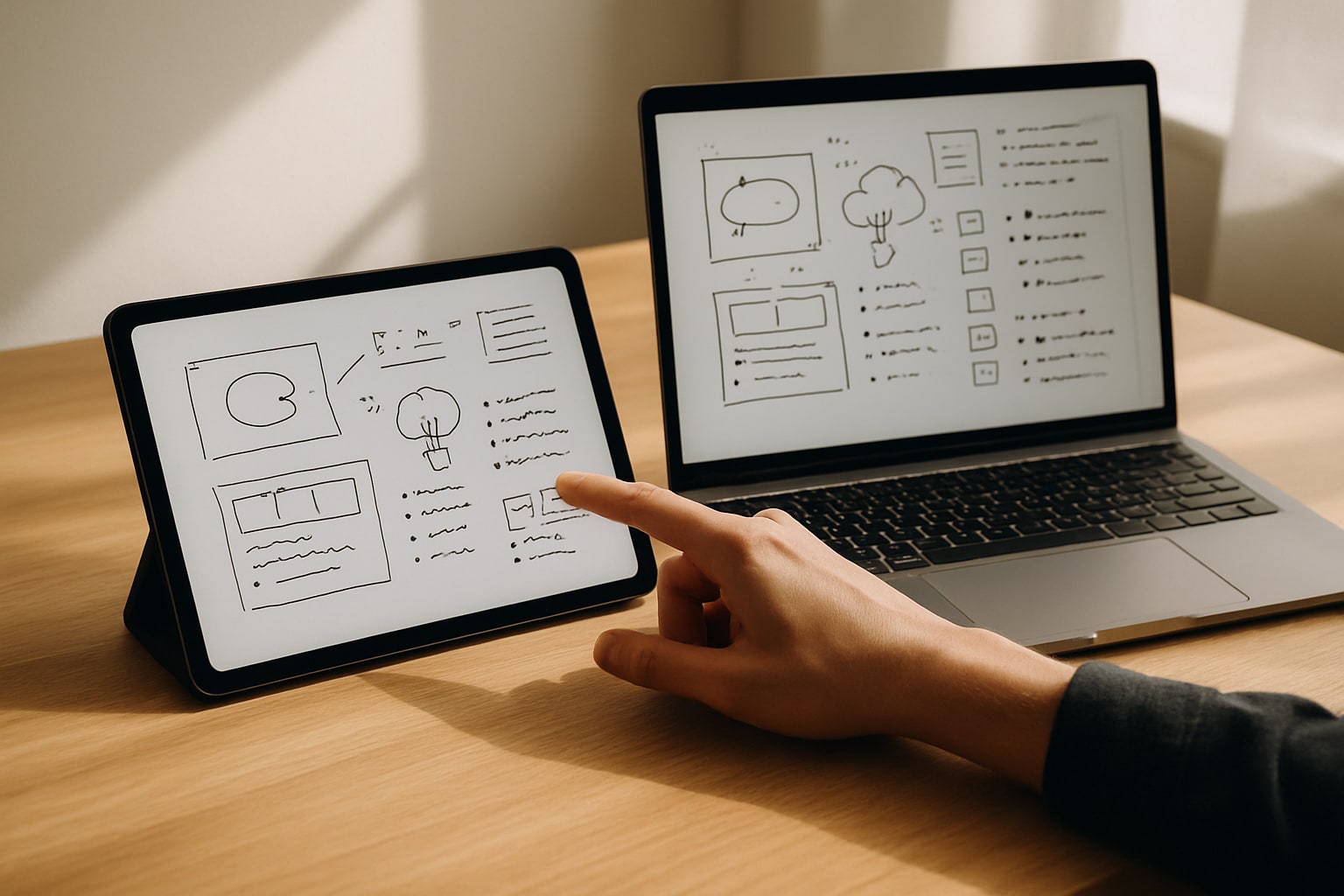
Set up a folder in iCloud Drive or, even better, in a service like Dropbox. You start editing on the iPad Pro on the sofa, close it, and in the evening open the same file on the Mac Studio or MacBook Pro with all layers intact. It’s the closest thing today to a truly seamless workflow between tablet and desktop computer.
If your thing is more video than photo, also take a look at this free DaVinci Resolve guide on MacBook Pro M3, another case of pro software without a subscription.
Real-world performance on iPad Pro M4
Concrete test: a .CR3 from a Canon R5 (45 MP, around 50 MB) opened on an 11″ iPad Pro M4 with 8 GB of RAM.
- Development and switch to Photo Persona: ~2 seconds.
- Adding 10 adjustment layers + 3 pixel layers with masks: smooth, no lag.
- Frequency separation with radius 8: ~1 second.
- Export to JPEG quality 90: ~3 seconds.
- Export to PSD with layers: ~6 seconds.
On an iPad Air M2 times rise by 20–30%, but you can still work without frustration. On a 10th-gen iPad with the same file you notice lag when scrolling through layers with complex masks.
Where Photoshop still leads
Be honest with yourself before cancelling your subscription:
- Generative AI: Photoshop has Generative Fill with Firefly. Affinity has no native equivalent. If filling skies, removing objects with AI or generating backgrounds is central to your work, Affinity will force you to do it by hand or with external apps.
- Scripting automation: Photoshop supports JavaScript and recorded actions. Affinity has “macros” on Mac, but on iPad they are very limited.
- Lightroom integration: if your catalogue lives in Lightroom, there is no direct bridge to Affinity.
- Third-party plugins: Nik Collection, Topaz Labs, DxO. Some work as Affinity filters on Mac, but on iPad there is no comparable plugin ecosystem.
Who it’s for, and who it isn’t
Yes if you do photo retouching, compositing, RAW editing and common graphic work, and you don’t depend on generative AI. Also if you’re coming from Photoshop, fed up with the subscription, and willing to accept two weeks of relearning.
No if your daily work is Generative Fill, if your team works with PSD files full of linked smart objects, or if you need Lightroom Classic integration. In those cases, Photoshop still deserves the fee.
For a freelance photographer, an illustrator, an editorial designer, or anyone who edits photos regularly without depending on Adobe’s pipeline, Affinity Photo 2 on iPad is today the most serious and economical alternative. You pay once, it runs on your iPad Pro with the Pencil, and if you have a Mac, you sync files without friction. Photoshop has more muscle in AI; Affinity has more muscle in your pocket.