iPhone Low Power Mode: when to turn it on and what it really sacrifices
What iOS turns off when you put your iPhone in Low Power Mode, how much battery you actually gain, and in which scenarios it's worth keeping it on all the time.
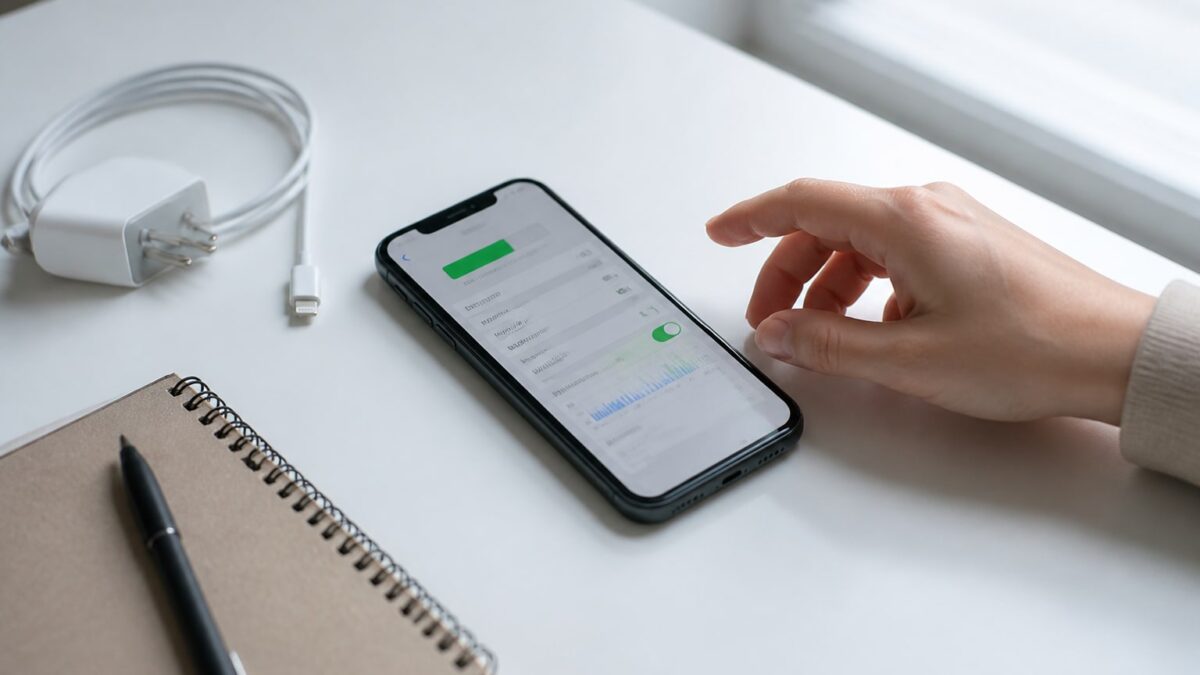
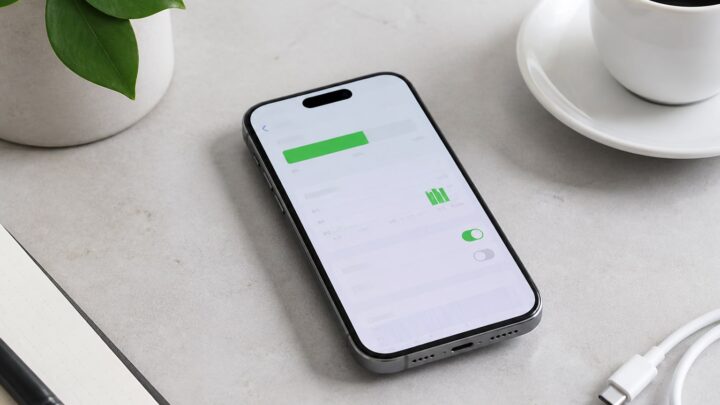
The battery icon turns yellow and, magically, the iPhone lasts a couple of hours longer. That’s the short version. The long one includes reducing the chip’s clock speed, pausing background syncs and, on ProMotion models, a screen capped at 60 Hz that most people notice without knowing why.
This article covers what iOS actually turns off when you enable Low Power Mode, how much you gain (20-30% extra battery life in real-world scenarios), and when it makes sense to use it beyond the classic “I’m at 20% and out of the house”.
What Low Power Mode is
It’s a feature Apple introduced in iOS 9 for iPhone, which later arrived on the iPad with iPadOS 15. It reduces energy consumption by turning off or limiting several system services. It’s not a magic switch: it’s a concrete list of trade-offs iOS makes in exchange for stretching the battery.
When you turn it on manually, it stays on until you charge the iPhone above 80%. If iOS turns it on by itself (when you reach 20%), it turns off automatically once you charge back above 80%.
How to turn it on step by step
Three routes, from fastest to most hidden:
- Control Center: swipe down from the top-right corner and tap the battery icon. If you don’t have it, go to Settings → Control Center → Low Power Mode and add it.
- Settings: Settings → Battery → Low Power Mode and flip the switch.
- Siri: “Turn on Low Power Mode”. Works since iOS 10.
On Apple Watch the equivalent feature has the same name and is found under Settings → Battery → Low Power Mode since watchOS 9.
What iOS turns off exactly
This is where superficial guides fall short. Here’s what iOS touches when you enable the mode:
| Feature | What happens with Low Power Mode |
|---|---|
| CPU and GPU | Maximum frequency reduced (apps and games run slower) |
| ProMotion display | Capped at 60 Hz (iPhone 13 Pro onwards) |
| Brightness | Automatically reduced |
| Auto-Lock | Drops to 30 seconds |
| Mail fetch | Paused (you only receive when you open Mail) |
| iCloud Photos | Sync paused |
| Automatic downloads | App Store stops updating apps in the background |
| Background App Refresh | Disabled for all apps |
| Visual effects | Reduced (some animations and 5G in standalone mode) |
| Always-On Display | Turned off on iPhone 14 Pro and later |
| 5G | Only used for streaming; everything else goes over LTE |
The two concessions people notice most in day-to-day use are the 60 Hz on Pro models and the Mail pause. If you use your iPhone for urgent work email, the second one is a real problem.
How much battery you actually gain
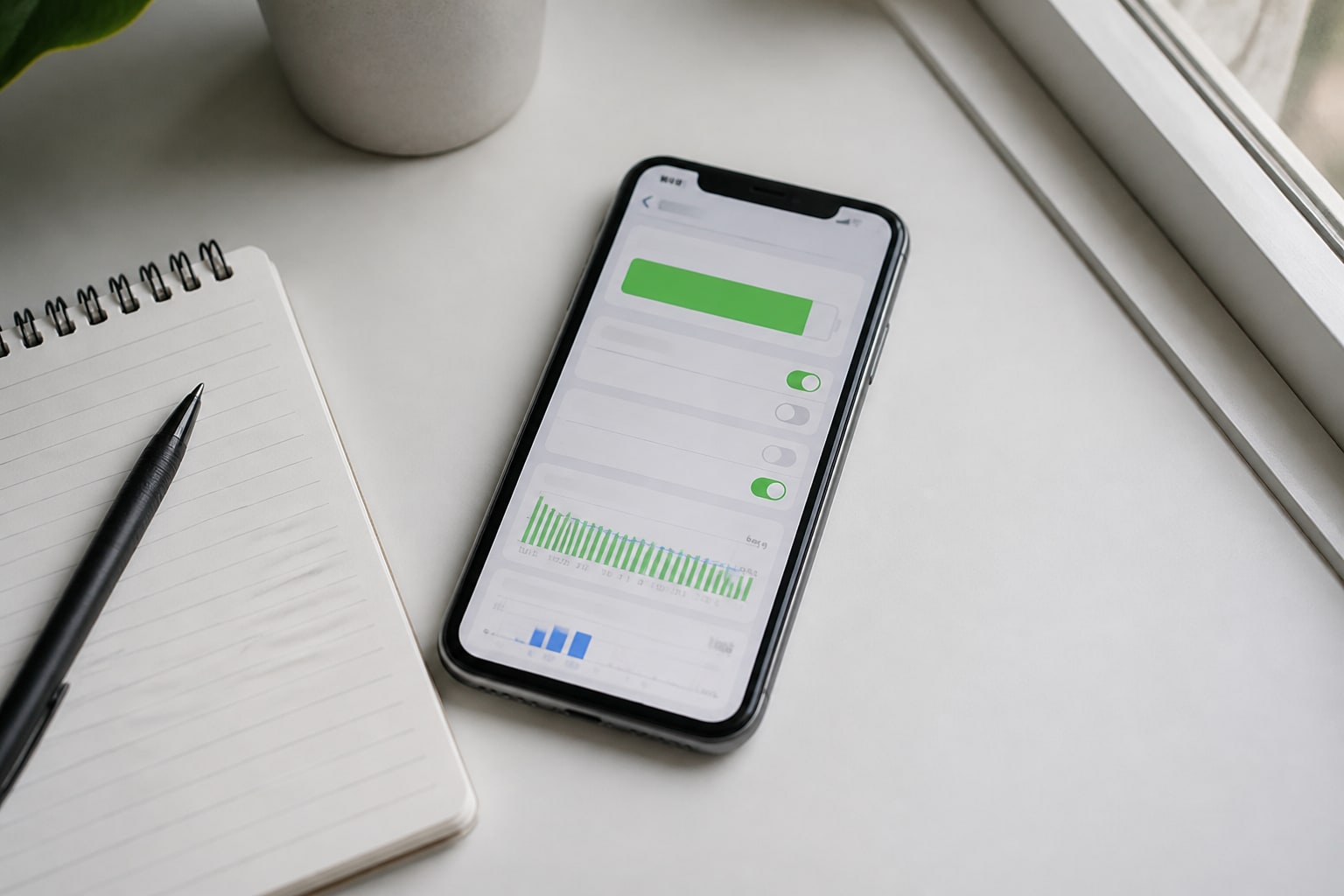
Apple doesn’t publish an official figure. In real-world use, and according to tests published by outlets such as Tom’s Guide and Six Colors across different iOS versions, the saving is around 20-30% extra battery life compared with the same use without the mode enabled. In other words: an iPhone that would give you 6 hours of screen time can reach 7-8 hours.
The saving depends heavily on what you’re doing:
- Web browsing and messaging: moderate saving (10-15%).
- Video streaming: high saving if you had 5G active (can exceed 25%).
- Demanding games: noticeable saving, but with a visible loss of smoothness.
- Idle screen with Always-On: very high saving on iPhone 14 Pro or later.
When to turn it on (and when not to)
There are four scenarios where turning it on is worth it without a second thought:
- Long day with no charger nearby: trip, event, wedding, concert.
- Prolonged GPS navigation: Google Maps or Apple Maps consume a lot. With Low Power Mode and manual brightness, it lasts considerably longer.
- Extreme cold: below 0 °C the iPhone temporarily loses capacity. Reducing CPU load helps.
- Degraded battery: if your maximum capacity is below 85% (you can see it in Settings → Battery → Battery Health), the mode mitigates shutdowns caused by consumption spikes.
When it doesn’t make sense:
- When you’re waiting for urgent work email.
- During video editing sessions, exports or games where you want maximum performance.
- If you use the iPhone as an intensive hotspot: the 5G limitation can penalise speed.
Leaving it on all the time: a good idea?
Many people leave it on 24/7 out of habit. Technically it doesn’t damage the iPhone or the battery. The problem is something else: you get used to 60 Hz on an iPhone 15 Pro or iPhone 16 Pro and lose a good part of what you paid for when buying a ProMotion model. Also, Mail doesn’t fetch email until you open the app, which some workflows find unacceptable.
If your problem is that the iPhone doesn’t last the whole day, before normalising Low Power Mode it’s worth diagnosing which apps are draining your battery without you noticing. There’s usually one or two specific culprits.
Automating it with Shortcuts
The most useful thing you can do with this feature is create automations. Open Shortcuts → Automation → New Automation:
- Turn it on at 30%: triggers “Turn on Low Power Mode” when the battery level drops below 30%. More margin than the default 20%.
- Turn it on when connecting to CarPlay: if you use GPS in the car, you save power on long trips.
- Turn it off when connecting to the MagSafe charger at home: in case you’d prefer it not to stay on out of context.
In iOS 17 and later, automations run without asking for confirmation, which makes them genuinely practical.
Common problems
- The icon doesn’t turn yellow: restart the iPhone. If it still doesn’t, check that no Focus mode is hiding the status bar colours.
- Mail doesn’t receive email even after turning the mode off: check Settings → Mail → Accounts → Fetch New Data and make sure “Push” is still enabled for each account.
- The iPhone is slow after turning it off: give it 10-20 seconds. The GPU needs a moment to return to high frequencies.
- It turns on by itself without reaching 20%: possible battery degradation. Check the real status under Settings → Battery → Battery Health & Charging.
FAQ
Does Low Power Mode damage the battery in the long term? No. On the contrary: it reduces intense work cycles that generate heat, the main enemy of lithium cells.
Does it work the same on iPad? Yes, since iPadOS 15. The effects are the same except for 5G and ProMotion (only the iPad Pro has 120 Hz).
Can I have it on and use Airplane Mode at the same time? Yes, they are independent. Combining both gives the biggest possible saving if you don’t need connectivity.
Does it affect call quality or FaceTime? Not for audio. In FaceTime video it may slightly reduce smoothness if the chip is heavily limited, but it isn’t noticeable in normal use.
What if my iPhone still lasts little even with the mode on? Check the battery health and per-app consumption. If you have a Pro model, it may be the typical case of iPhone 15 Pro battery that doesn’t last half a day, where the problem lies in specific apps or premature degradation.