How to Use Reminders in iOS 18 to Manage GTD-Style Tasks
A practical guide to building a complete GTD system in the iOS 18 Reminders app, with an inbox, contexts, projects and a weekly review. Includes Siri shortcuts, automations and a comparison with Things 3 and Todoist.
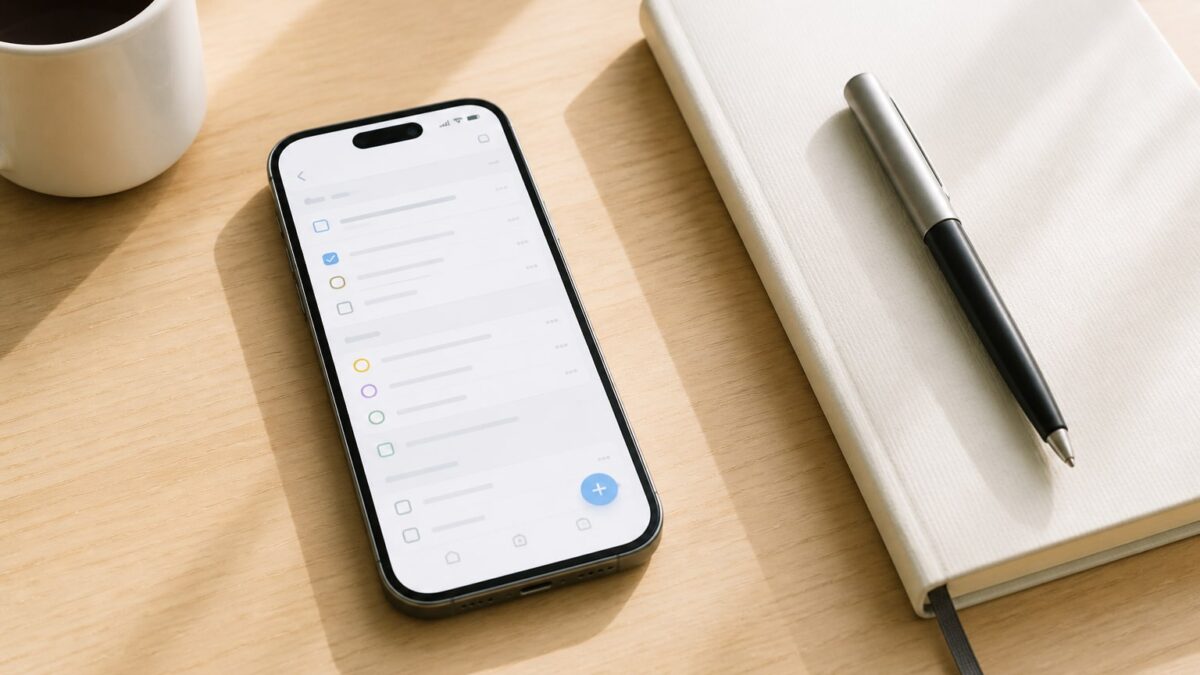
The Reminders app spent years being the poor cousin of Notes. In iOS 18 it no longer is. It has sections, tags, smart lists, Kanban-style columns and a Calendar integration that finally works. Enough to set up a GTD (Getting Things Done) system by David Allen without paying €29.99 for Things 3 or an annual Todoist subscription.
In this guide you’ll set up a complete GTD workflow: inbox, contexts, projects, weekly review and quick capture with Siri. Estimated time: 30-40 minutes the first time. After that, keeping it up takes about 10 minutes a week.
What GTD is and why it fits Reminders
GTD is the method by David Allen, published in 2001. The basic idea: your head is for thinking, not for storing tasks. Everything that crosses your mind goes into a trusted external system, is processed, sorted and reviewed on a regular basis.
The canonical workflow has five steps: capture, clarify, organize, review and do. You don’t need a dedicated GTD app. What you need is a tool with quick capture, lists separated by context, a way to group projects and a comfortable weekly review. Reminders in iOS 18 covers all four.
| GTD element | Where it lives in Reminders |
|---|---|
| Inbox | “Inbox” list |
| Contexts (@home, @computer) | Tags |
| Projects | Lists inside a “Projects” group |
| Next actions | Smart list filtered by tag |
| Someday / maybe | “Incubator” list |
| Weekly review | Smart list + recurring reminder |
Prerequisites
- iPhone running iOS 18.0 or later (iOS 18.2 recommended for smart list improvements).
- Optional: iPad running iPadOS 18 and Mac running macOS Sequoia 15.1 for syncing.
- iCloud enabled for Reminders: Settings → Your name → iCloud → Show All → Reminders.
- Having completed the Reminders upgrade to iCloud (if you’re coming from an older account, the app will ask you once).
If you use a work Exchange account, be careful: Exchange doesn’t support tags or sections. For GTD you need lists in iCloud.
Step 1: create the “Inbox” list as your inbox
Everything starts here. The inbox is where anything that pops into your head lands, without you having to think about it.
- Open Reminders.
- Tap Add List at the bottom right.
- Name: Inbox. Colour: red (so it stands out). Icon: a tray.
- Tap OK.
Now make it your default list: Settings → Apps → Reminders → Default List → Inbox. From now on, when you dictate “remind me to buy batteries” to Siri, it goes into Inbox automatically.
Step 2: define your contexts with tags
Contexts are the heart of GTD. Instead of sorting tasks by project, you sort them by where or with what you can do them. If you’re on the metro without a computer, seeing the task “prepare quarterly report” is no use to you. What you need is to see all your pending calls.
Typical tags to start with:
- #computer — anything that requires a Mac or PC.
- #home — physical tasks at home.
- #errands — tasks outside.
- #calls — phone.
- #waiting — delegated things waiting for a reply.
- #15min — short tasks for dead gaps.
To create tags in iOS 18: open any task, tap the # icon and type the name. From then on they appear in the Reminders sidebar as a global filter.
Step 3: structure your projects
In GTD, a “project” is any outcome that requires more than one step. “Assemble the shelving” is a project. “Book a dentist appointment” isn’t.
- Create a group: tap the three dots at the top right → Edit Lists → Add Group → name it Projects.
- Inside it, create one list per active project. Example: “October move”, “Client X website launch”, “Japan trip”.
- Inside each list, use the new iOS 18 sections to split phases: tap the three dots → Manage Sections → add “To Do”, “In Progress”, “Done”.
If you switch the view to Columns (three dots → View As → Columns), you get a decent Kanban board inside the app itself. It’s not Trello, but for personal projects it’s more than enough.
Step 4: the “Someday / maybe” list (incubator)
Ideas you won’t work on now but don’t want to forget go here. A book to read, a course to look at, a silly business idea.
Create a list called Incubator. No date, no tag. Review it once a month and move whatever has matured to Projects or to a list with a context.
Step 5: set up the “Next Actions” smart list
This is the list you’ll actually look at every day. It groups all actionable tasks, filtered by context, without project noise.
- Tap Add List → Smart List.
- Name: Next.
- Filters:
- Tags: include any (#computer, #home, #errands, #calls, #15min).
- Lists: all except Inbox, Incubator and Projects → “Done” sections.
- Save.
Now you can filter by context from the list itself. If you’re on the sofa, tap #home and see only what you can do there.
Step 6: quick capture with Siri and Shortcuts
80% of GTD’s usefulness depends on capture being instant. If it takes you more than 5 seconds, you won’t do it and the system dies.
Siri: “Hey Siri, add to Inbox call the tax office tomorrow at 10”. Since Inbox is your default list, you can simply say “remind me to X”.
Action Button (iPhone 15 Pro onwards): assign it to Reminders. Settings → Action Button → swipe to Reminders. Pressing it launches the new-task view directly.
Capture shortcut: create a shortcut in the Shortcuts app:
- New reminder → Add to List → select Inbox.
- Ask for text input → “What should I note?”.
- Add the shortcut to the lock screen as a widget or to the home screen.
You can also add items from a Mac running macOS Sequoia by pressing ⌘ + N in Reminders, or share a web page from Safari directly to Inbox.
Step 7: the weekly review
Without a weekly review, GTD isn’t GTD. It’s just another list that ends up abandoned in a drawer.
Set a recurring reminder on Fridays at 17:00 (or whenever suits you). For 20-30 minutes:
- Empty Inbox: each task → is it actionable? If not, delete it or send it to the Incubator. If so, assign a context tag and, if it belongs to a project, move it to the corresponding list.
- Review Projects: does each project have at least one next action with a tag? If not, create one.
- Review #waiting: do you need to chase anyone?
- Review the Incubator: has anything matured?
- Check the calendar for next week to anticipate.
For this I use a smart list called Review that groups: the full Inbox + untagged tasks + projects with no pending tasks. In 10 minutes you know what’s loose.
Step 8: Calendar integration in iOS 18
A useful new feature in iOS 18: reminders with a date and time appear directly in the Calendar app. And the other way round, you can create reminders from Calendar.
This closes the GTD “hard landscape vs soft landscape” loop without needing Fantastical. Appointments with fixed times go in Calendar. Actionable tasks (even with a deadline) live in Reminders and are visualised alongside.
Common problems
Siri adds to the wrong list. Check Settings → Apps → Reminders → Default List. Sometimes an update resets it.
Tags don’t sync to the Mac. Confirm both devices are on iCloud and not Exchange for that account. Tags are exclusive to iCloud.
The smart list doesn’t show tasks it should. Smart lists exclude undated tasks if you’ve set the “date” filter. Remove that filter if you want to see everything.
I keep forgetting to check Inbox. Put the Inbox list as a medium-sized widget on the home screen. Seeing it every time you unlock the iPhone forces the habit.
Sections don’t appear in my list. Sections only work in iCloud lists on iOS 18. Check the list isn’t inherited from iOS 17 in an old format: duplicate it and use the copy.
Alternatives if Reminders falls short
Reminders covers 90% of personal GTD. If you’re a consultant with 40 simultaneous projects and need views by area of responsibility, monthly reviews with metrics and related databases, it falls short.
- Things 3: €29.99 on Mac + €10.99 iPhone + €21.99 iPad. One-off payment. The most faithful implementation of pure GTD. Impeccable design.
- Todoist: roughly €4/month subscription. Genuinely cross-platform (Android, web, Windows). Powerful filters.
- OmniFocus 4: €9.99/month subscription or one-off purchase. For obsessive power users. Serious learning curve.
If you also work a lot with plain text and notes, you may be interested in how to integrate Apple Notes as a replacement for Obsidian or Bear alongside this Reminders system. Quick captures in Reminders, reference material in Notes.
FAQ
Can I share GTD lists with my partner or team? Yes. Tap the list’s three dots → Manage Shared List. Useful for “Home” or “Shopping”. Don’t use it for professional projects with outsiders who don’t have an Apple account.
Does this work if I have an iPhone and a Mac but no iPad? No problem. What matters is iCloud. The iPad is handy for the weekly review but not essential.
Do tags have a limit? No documented limit, but more than 15-20 tags undermines the GTD philosophy. If you have 40, review which ones are real contexts and which are disguised categories.
Can I export my data if I one day move to Things or Todoist? Officially there’s no native export. You can copy lists manually or use shortcuts to generate a text file. It’s Reminders’ biggest limitation compared to Todoist, which exports JSON and CSV.
Does Siri understand “add to #computer”? Partially. In iOS 18.2 Siri recognises tags when dictating in some languages, but support in Spanish is patchy. Trust the method: capture quickly into Inbox and tag afterwards during the review.