Apps that drain the iPhone battery without you noticing: how to find them
We explain how to use the iPhone battery panel to detect which apps consume battery in the background without you realizing it. Concrete steps, typical mistakes and alternatives to extend battery life.
The afternoon comes around and your iPhone is at 30% without you having done anything unusual. You haven’t been gaming, you haven’t recorded video, you’ve barely looked at the phone. And yet the battery has dropped as if you’d been playing something demanding for half an hour. There is almost always an explanation for this: an app is working in the background without you knowing.
Here’s how to find it using the iPhone itself, without installing any third-party tools. The process takes less than two minutes once you know where to look. It works on any iPhone with iOS 16 or later, although the breakdown is easier to read from iOS 18 onward. As of November 2026 the current stable version is iOS 27.2.1, so if your iPhone hasn’t upgraded yet, no problem: the menu you’re going to use has been in the same place for years.
Prerequisites
You don’t need any additional app. Everything is inside Settings, built in. It is advisable to have your iPhone updated to a recent version of iOS, because Apple has been refining the detail of the breakdown: in iOS 18 they added information by time slot that didn’t exist in earlier versions.
One important caveat before you start: the data you’ll check is accumulated since the last full charge, or over the last ten days if you open the extended view. If you charged your phone just twenty minutes ago, there will hardly be any useful information. Give it a few hours of normal use before drawing conclusions.
Steps to see which apps use the most battery
Step 1: open the battery panel
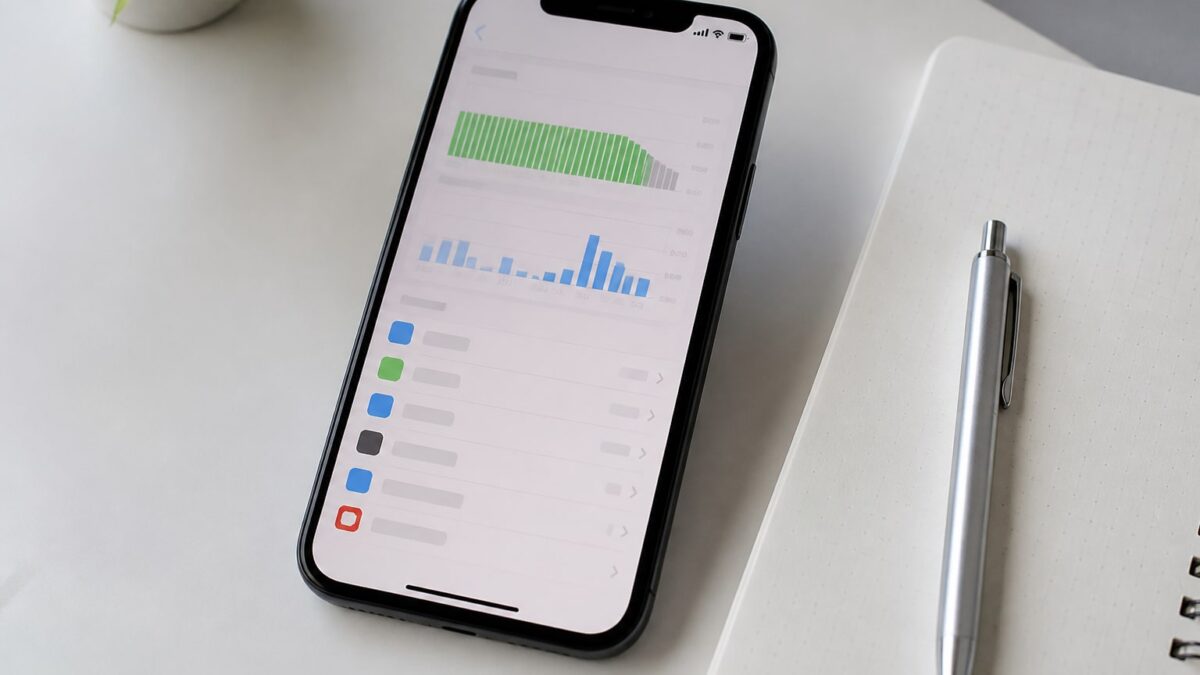
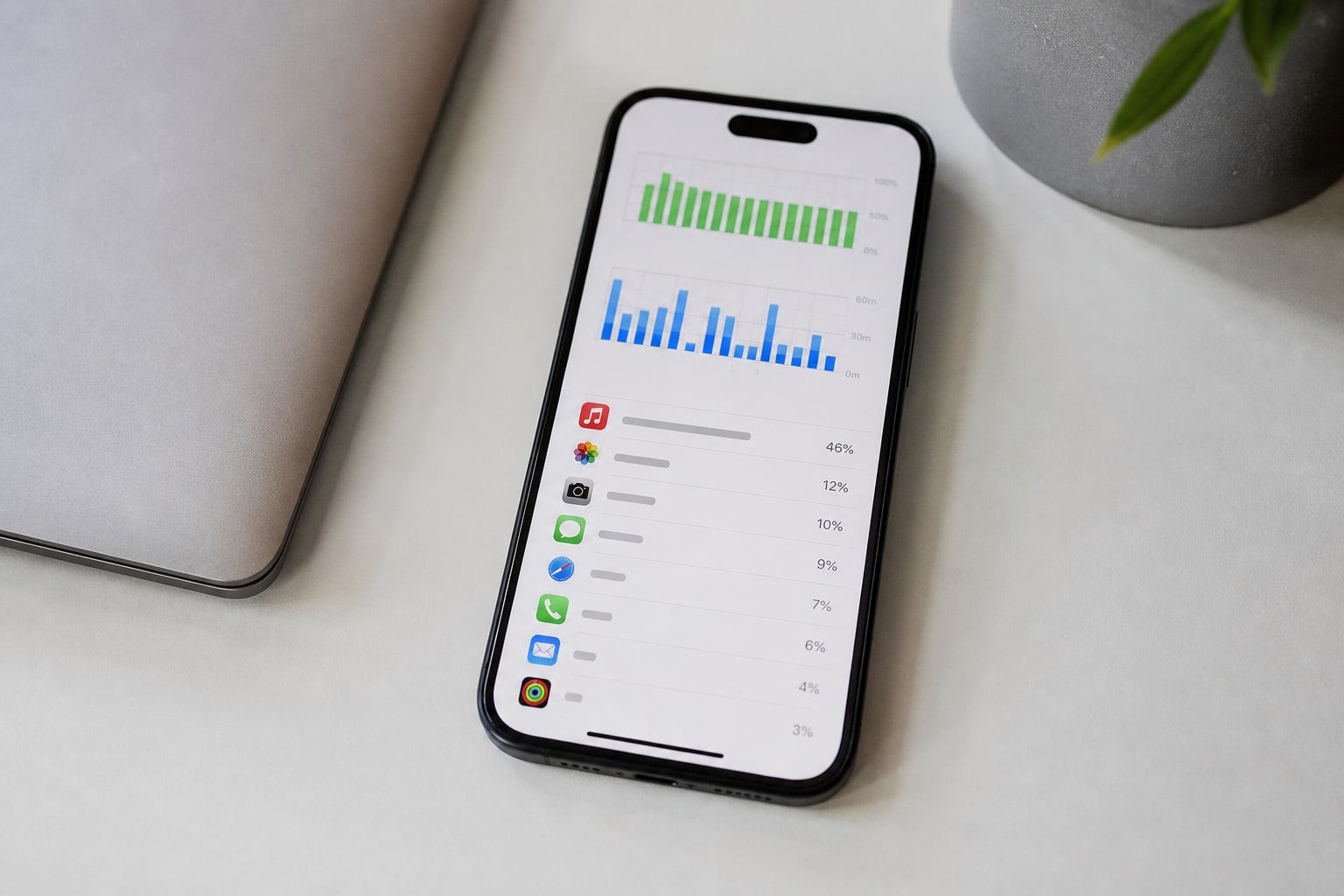
Go to Settings → Battery. At the top you’ll see a graph of the battery percentage over the course of the day, and right below it, a list of apps sorted from highest to lowest consumption. That order already tells you a lot: if something you barely open appears in the top 3, you’ve found your suspect.
Step 2: read the breakdown, not just the percentage
Tap the clock icon (⏱) next to “Last 24 Hours” or “Last 10 Days”, at the top right of the graph. That’s where the information that really matters is: for each app, iOS separates screen usage from background usage. This is the key to the whole article.
If an app has a high percentage but almost all of it is “screen usage”, there’s no problem: you’ve used it and it has consumed what’s normal. The problem appears when background consumption is equal to or greater than screen consumption. That means the app keeps working even though you’ve closed it.
Step 3: identify suspicious patterns
There are three signals that usually reveal a problematic app:
- It shows high consumption even though you remember opening it only a couple of times.
- It has a location icon (a small arrow) next to its name, a sign that it has recently used GPS, sometimes continuously.
- It has “Background App Refresh” enabled and also sends constant push notifications (social networks, delivery apps, badly configured email clients).
This table works as a quick cheat sheet for interpreting what you see in that breakdown:
| What you see in Settings → Battery | What it means |
|---|---|
| High % screen usage, low background | Normal consumption, the app reflects how much you’ve used it |
| % background equal to or greater than screen | The app works on its own without you opening it, a candidate to review |
| Location icon next to the name | It has recently used GPS, it may be continuous |
| App with push notifications + background refresh active | Typical combination of hidden drain (social networks, messaging, email) |
| High consumption the same day as an app update | It may be a one-off bug in that version, not a pattern |
Step 4: cut off the specific app
For the flagged app, go to Settings → [app name] and look for two switches: Background App Refresh and, if the app uses location, Location. You can turn off the first without worry in almost any app; for the second, change it to “While Using the App” instead of “Always”, unless you really need continuous tracking (running apps, for example).
Common problems
No clear app stands out, consumption is spread out. Normal if you use your phone a lot throughout the day. In that case the problem isn’t one specific app but general use. Also check the screen brightness and whether you have 5G forced on all the time.
An app suddenly spikes after an update. This happened with iOS 18.2 some time ago, where several users reported abnormal consumption after installing the version; if you’re interested in that specific case, we cover it in this article on how to diagnose excessive battery use in iOS 18.2. If something similar is happening to you now with iOS 27, try force-quitting the app and restarting the iPhone before uninstalling anything.
WhatsApp or Spotify always appear at the top. It’s not necessarily a fault. WhatsApp maintains a constant connection to receive messages instantly, and Spotify keeps playing in the background if you have music on. That counts as real use, not as a hidden leak.
The panel doesn’t update or shows strange data. Sometimes the graph takes a few hours to reflect recent activity. If this has gone on for more than a day, restart the iPhone; that usually fixes the mismatch.
I turned off background refresh and the app stopped alerting me in time. That’s the price of cutting that consumption. For critical messaging apps, it’s better to leave it on and look for the problem elsewhere.
Alternatives for further investigation
If the battery panel doesn’t give you a clear answer, the next step is to check the overall battery health in Settings → Battery → Battery Health & Charging. A battery with maximum capacity below 80% drains faster regardless, and then the problem isn’t the apps but the hardware. If you suspect this, this article on the causes of fast iPhone battery drain goes into detail on when it’s time to replace the battery and when it isn’t.
FAQ
Can I see per-app consumption for a whole week? The panel itself goes back ten days with the extended view. For more history there’s no native option; you’d have to note it down manually.
Does uninstalling and reinstalling an app reset its battery consumption? Yes, reinstalling it clears the accumulated history and starts counting from zero, although that doesn’t fix the problem if the cause is still there.
Can system apps (Safari, Messages) also drain battery in the background? Yes, they appear in the same list as third-party apps. Safari with many tabs open playing content is a classic that rarely gets mentioned.
Does Low Power Mode fix this at the root? No. It reduces the overall impact by limiting updates and performance, but it doesn’t identify or fix the specific app that is using too much.
Is a jailbreak needed to see more detail than Apple offers? No, and in fact you’d lose warranty and security. The native breakdown in Settings → Battery is enough for 95% of real cases.