iOS 18.2 drains more battery than normal: how to diagnose it step by step
If your iPhone runs down faster after updating to iOS 18.2, here is a step-by-step diagnosis with exact Settings paths. Learn how to tell whether the culprit is Apple Intelligence, a specific app, or background indexing.
If you’ve just updated and notice your iPhone losing percentage at a speed you didn’t see before, you’re not alone. There are open threads on Apple forums with users describing the same symptom after installing this version: the battery drains too fast without being used.
This guide walks you through an orderly diagnosis, with realistic timings: between 15 and 30 minutes if you follow all the steps.
It isn’t a “restart and pray” tutorial. It’s a process for you to identify whether the problem is temporary (indexing after the update), structural (Apple Intelligence active) or something specific to one app.
Prerequisites
You need an iPhone compatible with iOS 18.2 or later (including the 18.2.1 revision). To see per-app usage data with background detail you need at least iOS 16, so if your system is up to date you’re well covered. No third-party app is needed: everything you’ll check is in Settings.
Have your iPhone charged to at least 50% before starting. You’re going to compare consumption, and starting with low battery distorts the percentages.
Step 1: confirm the exact version and check for a patch
Go to Settings → General → About and look at the build number. If you have 18.2 without a suffix, check whether 18.2.1 is available in Settings → General → Software Update. Apple usually releases minor revisions that fix abnormal consumption without changing the major version.
Expected result: you know whether you’re already on the latest build or whether a pending update could fix the problem at its root.
Step 2: review consumption by app
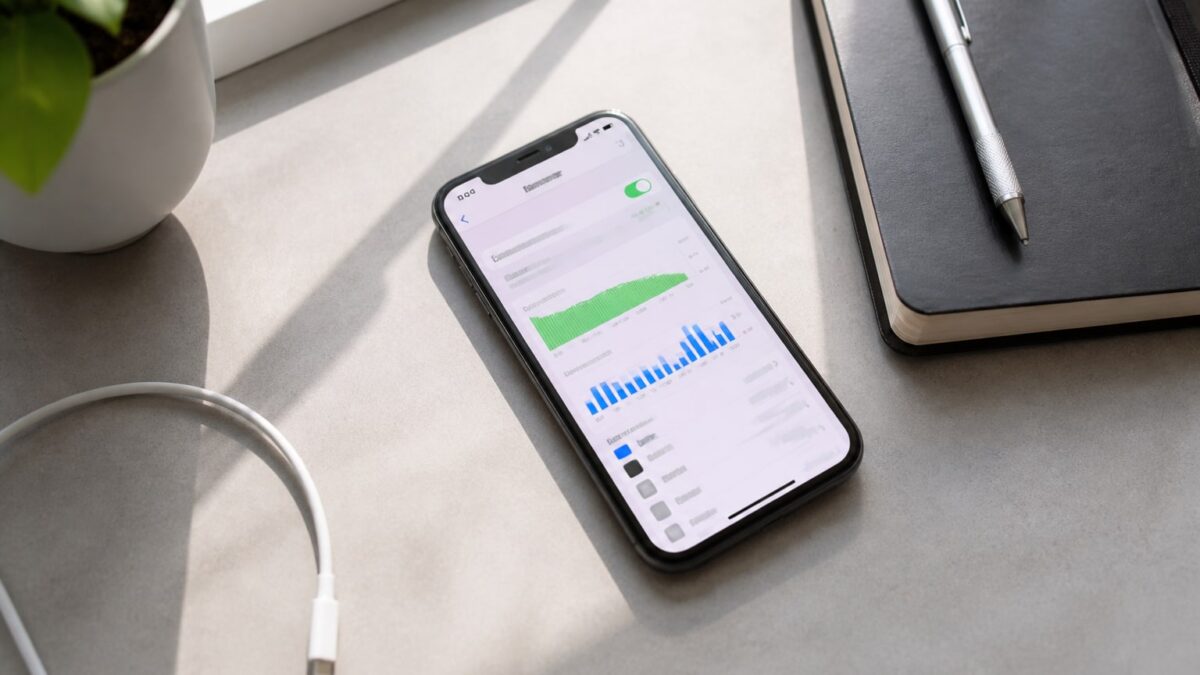
Path: Settings → Battery. Let at least 2-3 hours of normal use pass before checking so you have reliable data. Look at two columns: the percentage for “Screen On” and the percentage for “Screen Off”.
If an app has high consumption with the screen off, it’s your prime suspect: go to Settings and Battery to see which applications consume the most energy, and close or delete those that unnecessarily drain the battery.
Expected result: an ordered list where you can detect whether a specific app is misbehaving or whether consumption is spread normally across several.
Step 3: check whether the system is still indexing after the update
It’s common that, right after installing a new version, the system re-indexes files, photos and Spotlight data in the background. Several users have reported that Settings shows an explicit notice: in the battery section there is a message stating that background processes are running and this may consume more battery than usual because it is indexing files.
If you see that notice, don’t do anything drastic yet. Leave the iPhone charging and connected to Wi-Fi overnight; this task usually completes on its own within 24-48 hours.
Step 4: check whether Apple Intelligence is the source
This is the least obvious and most relevant cause in iOS 18.2, because it brought the second wave of AI features. One user who tested turning the feature on and off in a controlled way documented a notable difference: disabling Apple Intelligence improved his iPhone’s battery life by roughly 25%, going from needing two full charges a day to one and a half.
The same pattern appears in Apple support forums: a user with an iPhone 16 Pro noticed significant battery drain after enabling Apple Intelligence for a week, reaching 20% by early afternoon.
To check this in your case: Settings → Apple Intelligence & Siri and disable it for 24 hours. Compare the previous day’s consumption with a day without the feature active.
Step 5: check battery health and overheating
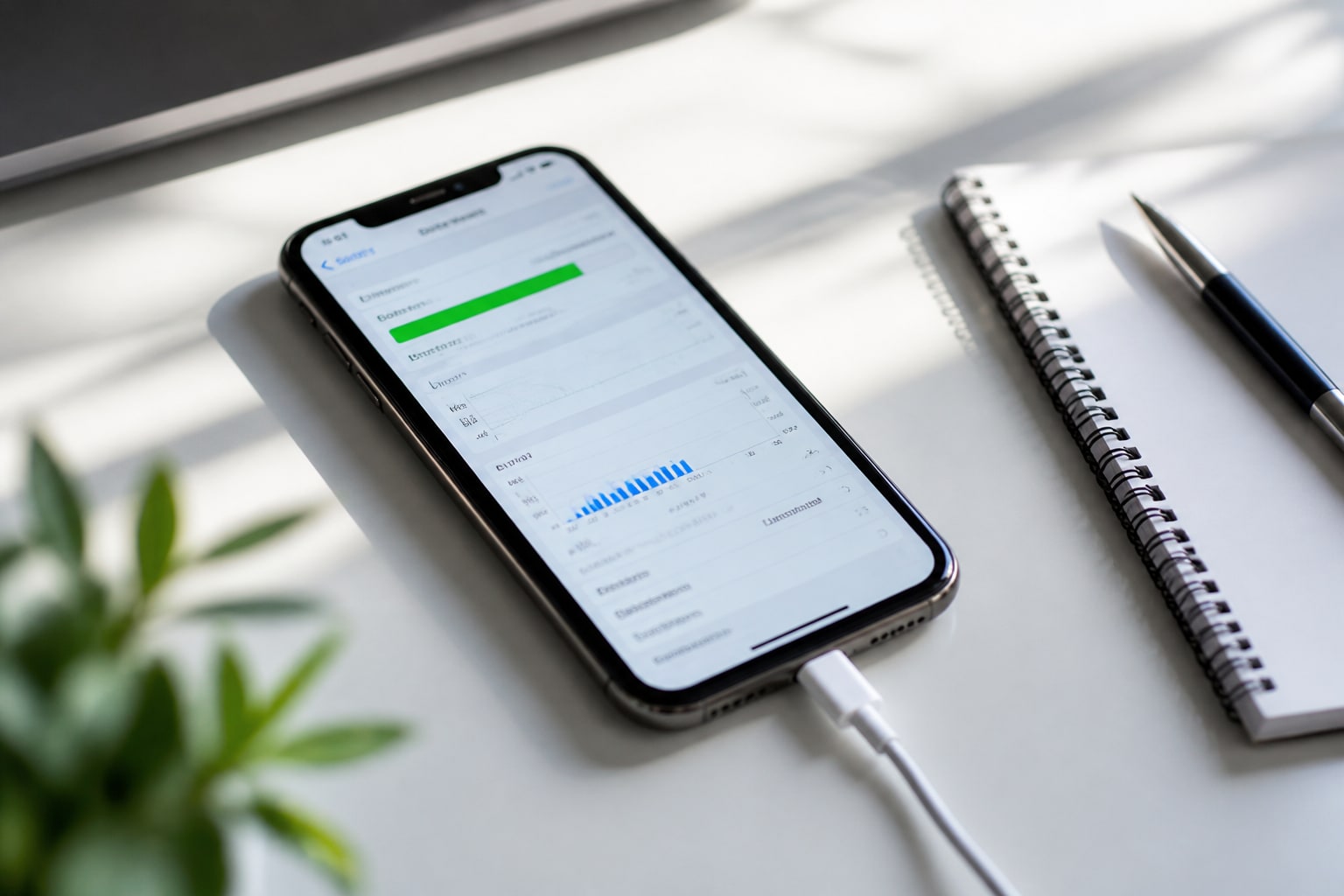
Path: Settings → Battery → Battery Health & Charging. If maximum capacity dropped sharply right after the update, it may be a sign that the system is mismanaging the charging curve, not necessarily a physical problem. There are user reports of battery health falling from 100% to 90% after updating.
If you notice the phone heating up without using heavy apps or charging, combine this with step 2: there is almost always a specific app or process behind the heat, not the operating system in general.
Step 6: reset settings as a last resort
If after all of the above the consumption is still abnormal, go to Settings → General → Transfer or Reset iPhone → Reset → Reset All Settings. This doesn’t delete data or photos, but it does erase all network, display and privacy preferences, which you’ll have to set up again.
| Probable cause | Where to check | Solution |
|---|---|---|
| Indexing after update | Settings → Battery (background notice) | Wait 24-48h while charging |
| Apple Intelligence active | Settings → Apple Intelligence & Siri | Disable and compare consumption |
| Runaway specific app | Settings → Battery (list by app) | Close/update/uninstall the app |
| Degraded battery health | Settings → Battery → Battery Health & Charging | Review charge history, consider replacement if old |
| Corrupted settings after update | — | Reset All Settings |
Common problems when diagnosing
The battery report shows nothing unusual but consumption is still high. Try leaving the iPhone untouched for 24 hours and check the “Screen Off” figure: if it exceeds 20% of total consumption, there is a ghost process.
Disabling Apple Intelligence changes nothing. Then the problem isn’t the AI in your specific case; go back to step 2 and look at third-party apps, especially those using background location.
The phone heats up just while charging. Check the cable and adapter. An uncertified charger can generate more heat than normal, which the system interprets as energy misuse.
Battery health dropped several points at once. If your iPhone is over two years old, it’s likely to match the natural wear cycle, not the update. If it’s a recent model, document the case and contact Apple Support.
Alternatives if the diagnosis doesn’t solve the problem
If you’ve been through all the steps and consumption still doesn’t add up, the article iPhone battery draining fast: causes and solutions that work expands the diagnosis with cases that don’t depend on a specific iOS version, such as animated wallpapers or very active widgets.
Another option is to back up to iCloud or a Mac and restore the iPhone as new, without recovering the app data. It’s more aggressive than resetting settings, but it rules out any system data corruption at the root.
Frequently asked questions
Does iOS 18.2.1 fix the battery problem? It fixes some specific bugs, but according to Apple’s changelog it isn’t a battery-specific patch. If the source is Apple Intelligence, you’ll still see the same consumption.
Does disabling Apple Intelligence delete my data? No. It only turns off on-device and Private Cloud processing. You can re-enable it anytime from the same Settings path.
Does resetting settings delete my photos or apps? No. It erases Wi-Fi, Bluetooth, home screen and app permission preferences. You’ll have to grant location and notification permissions again.
Why does my iPhone heat up and lose battery without being used? It’s almost always a combination of post-update indexing and an app with background refresh enabled. Step 2 of this guide shows you in minutes.
Does this affect all iPhone models? Reports are concentrated mostly on models with Apple Intelligence active (iPhone 15 Pro onward), but post-update indexing processes affect any iPhone compatible with iOS 18.2.