How to set up Time Sleep and the Health app on iPhone to improve your sleep
A practical guide to setting up Sleep Focus, your bedtime schedule and Apple Watch tracking from your iPhone. Exact steps for iOS 18 and how to read the metrics without going crazy.
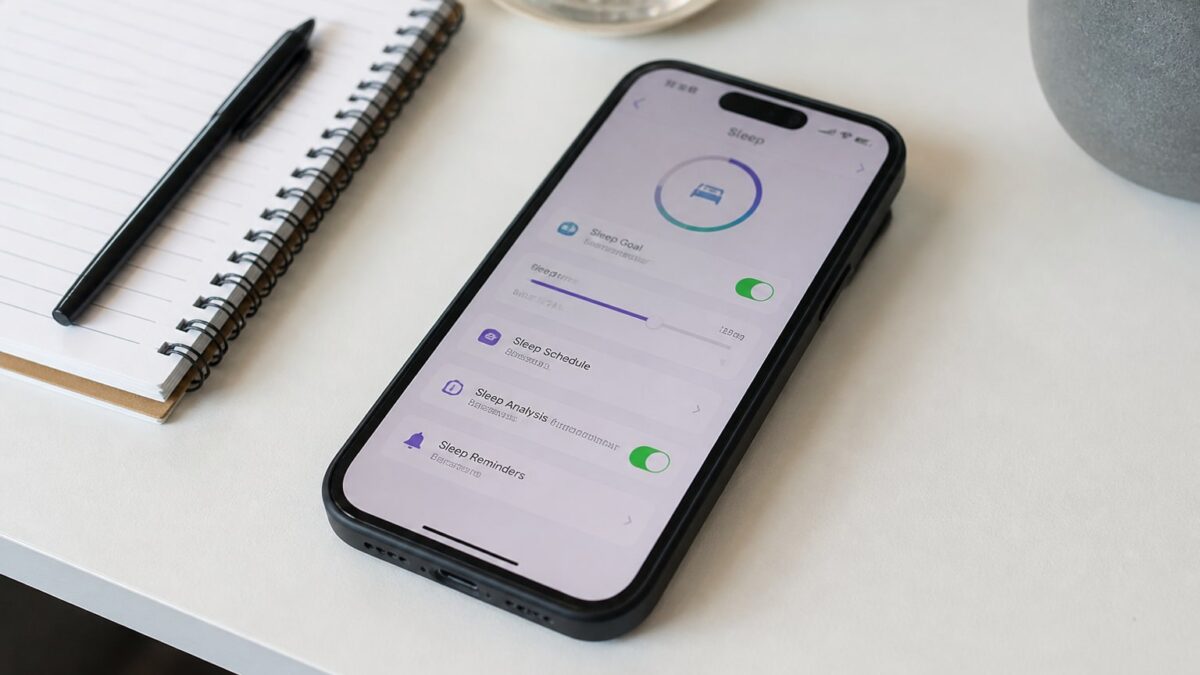
Sleeping badly shows up the next day, and the iPhone has serious tools to help you without downloading anything extra. In this guide I’ll show you how to set up Sleep Focus (the well-known “Time Sleep” or Sleep Focus), the sleep schedule in the Health app and tracking with Apple Watch. Everything step by step, with real menu paths and what each setting actually does.
Estimated time: about 15 minutes to get everything ready. Valid for iPhone with iOS 18 or later, and optionally Apple Watch with watchOS 11.
What Time Sleep is and why it matters for rest
“Time Sleep” is not an official Apple name; it’s how many people refer to Sleep Focus. It’s a focus mode that turns on at the time you set, silences notifications, dims the lock screen and launches a pre-sleep routine to prepare you for bed.
Combined with the sleep schedule in the Health app, the iPhone goes from being the main thief of your rest to a tool that nudges you toward bed. It’s no magic: it’s automated sleep hygiene.
Summary of key features
| Feature | Where it’s set up | What it’s for |
|---|---|---|
| Sleep Focus | Settings → Focus | Silence notifications at night |
| Sleep schedule | Health app → Sleep | Schedule bedtime and wake-up |
| Wind-down period | Health app → Sleep → Options | Remind you before bedtime |
| Apple Watch tracking | Health app → Sleep → Options | Measure sleep stages and HR |
| Alarm clock | Health app or Clock | Wake up without an annoying noise |
Prerequisites before you start
Before touching anything, check the following:
- iPhone with iOS 18.2 or later. Go to Settings → General → About and check the software version.
- Health app installed (it comes preinstalled; if you deleted it, download it from the App Store).
- Optional: Apple Watch paired with watchOS 11 or later for automatic sleep stage tracking.
- Set aside 10 unhurried minutes. If you do it half-asleep, you’ll leave it unfinished.
How to turn on Sleep Focus step by step
Sleep Focus is the main switch. Here’s what to do:
- Open Settings → Focus.
- Tap Sleep (it has a bed icon).
- Under People, decide who can bypass the silence. I leave immediate family; everyone else, out.
- Under Apps, add only the essentials. My recommendation: Phone and not much else.
- Turn on Dim Lock Screen and Hide Notification Badges.
- Under Lock Screen and Home Screen, choose a minimalist screen (you can create a specific one for Sleep Focus).
The result: when it turns on, your iPhone darkens, doesn’t vibrate and doesn’t show you the pile of pending WhatsApp messages if you wake up to pee at 4 a.m.
How to schedule your sleep in the Health app
This is where you tell the iPhone what time you need to go to bed and what time you wake up.
- Open the Health app.
- Tap Browse → Sleep.
- Tap Get Started or Set Up Sleep if it’s your first time.
- Set your sleep goal (for example, 7 h 30 min).
- Define your sleep schedule: bedtime and wake-up time. You can have different times on weekdays and weekends.
- Turn on Wake-up Alarm and choose the sound. The default works fine.
If you want more than one schedule (typical for shift workers), tap Add Schedule for Different Days and create an extra one. The iPhone will follow whichever applies to that day of the week.
Wind-down period: the honest reminder
Inside Health → Sleep → Options, you’ll see Wind Down. This sets how many minutes before bedtime Sleep Focus turns on. If you choose 45 minutes, at that time the iPhone reminds you, dims the interface and starts removing distractions.
It’s the most underrated feature in the whole system. If you don’t turn it on, the schedule is just decoration.
Setting up smart alarms to wake up without a jolt
You no longer need the Clock app for your morning alarm. The sleep schedule handles the alarm for you.
- Inside Health → Sleep → Full Schedule and Options, turn on Alarm.
- Choose Sound and Haptics and try Early Chimes or Early Light. They’re gentler than the classic Radar.
- Turn on Snooze only if you’re someone who snoozes with control. Otherwise, turn it off: you’ll sleep better.
If you use Apple Watch, you can enable silent wrist vibration so you don’t wake whoever is sleeping next to you. It’s set up from the Watch app on the Watch itself.
Sleep tracking with Apple Watch
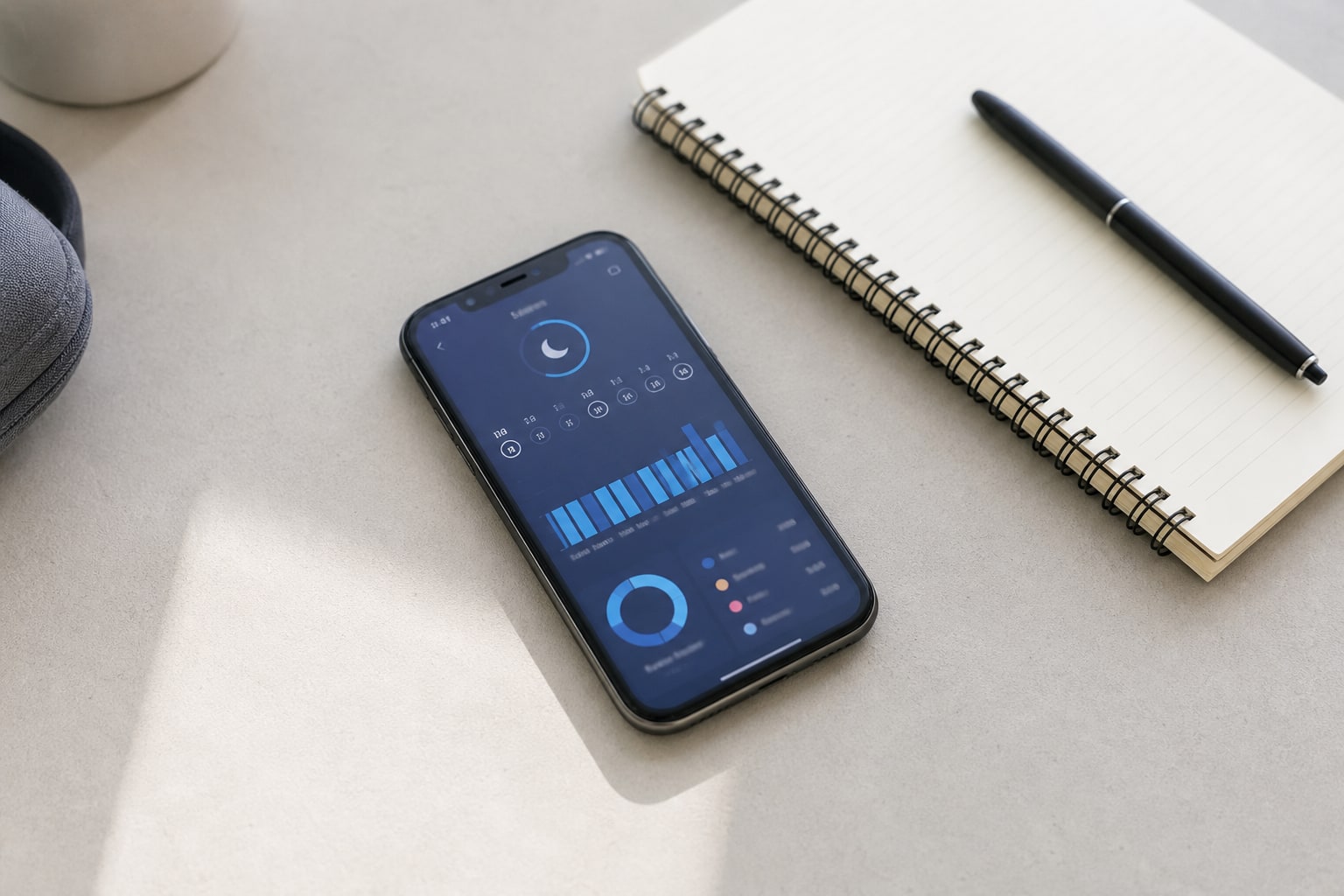
Here’s the difference between “scheduling a time” and “measuring what happens when you sleep”. The Apple Watch records stages (REM, deep, core) and heart rate throughout the night.
To turn it on:
- On the iPhone, open the Watch app.
- Go to Sleep.
- Turn on Sleep Tracking and Use Sleep Focus at Bedtime.
- Also turn on Charging Reminders so the watch warns you if it doesn’t have enough battery before bed.
The Apple Watch Series 9, Series 10 and Ultra 2 also measure wrist temperature, a useful data point for detecting hormonal patterns or illness. You’ll see it in Health → Browse → Wrist Temperature after a few nights.
If you sleep with an Apple Watch SE, you’ll get stages and heart rate, but not temperature. Nor sleep apnea detection, which arrived with Series 9 and Ultra 2.
Pre-sleep routines: useful automations
Beyond the manual setting, you can chain automatic actions with Shortcuts:
- When Sleep Focus turns on, play rain background sounds (Settings → Accessibility → Audio & Visual → Background Sounds).
- Turn on the bedroom HomeKit lamp in amber at 20%.
- Launch a meditation in the Mindfulness app.
To create it: Shortcuts → Automation → Focus → Sleep → When Turning On. Add the actions and you’re done. If you use the Notes app to keep a journal, you can even integrate it as a serious replacement for apps like Obsidian or Bear and log how you feel when you wake up.
How to read sleep data without obsessing
The Health app shows nice charts, but you need to know how to read them:
- Time in bed vs time asleep: the difference is your latency. If you sleep 95% of your time in bed, you’re doing well. Under 80%, there’s a problem.
- Deep sleep: normal is 13–23% of the total. If you see less, it’s usually alcohol, heavy dinners or screens until late.
- REM: 20–25% is the healthy range. It drops with stress and frequent awakenings.
- Nighttime resting heart rate: your personal baseline. A spike of 5–10 bpm above your average usually means you’re coming down with something or you drank yesterday.
Don’t compare yourself to your neighbour. Compare yourself to yourself over 30-day windows.
Common problems and how to fix them
- Sleep Focus doesn’t turn on by itself: check that Settings → Focus → Sleep → Smart Activation is on and that the bedtime matches your sleep schedule.
- The Apple Watch doesn’t record sleep: it has to be worn to bed and have at least 30% battery. If you charge it overnight, there won’t be any data.
- The alarm sounds but the Watch doesn’t vibrate: check on the Watch, Settings → Sleep → Alarm on Apple Watch.
- Notifications keep getting through: review the list of allowed People and Apps in Sleep Focus. Some app will have slipped in.
- Stages don’t appear, only “in bed”: you need an Apple Watch. Without it, the iPhone only estimates time in bed based on phone use.
Alternatives and complementary apps
If you want more data than the native ones, there are serious options:
- AutoSleep (€5.99): much finer analytics than Health, with a daily readiness score.
- Pillow: good for those without an Apple Watch; it uses the iPhone’s microphone.
- Oura Ring: if you don’t want to wear a watch at night, the ring measures stages and recovery. It syncs with Health.
Data from all of them can be exported to Health to keep everything centralized. That’s the good thing about the ecosystem: you don’t marry a single app.
Frequently asked questions
Does sleep tracking work without an Apple Watch? Yes, but it only records time in bed based on iPhone use, not stages. For stages and HR you need an Apple Watch or a compatible device (Oura, Whoop).
Can I have a different sleep schedule on weekends? Yes. In Health → Sleep → Full Schedule and Options you can add several schedules and assign them the days you want.
Does Sleep Focus block emergency calls? No. If someone calls you twice within 3 minutes, the second call comes through (if you’ve enabled that option in Settings → Focus → Sleep → People → Allow Repeated Calls).
Can it be used with an iPad instead of an iPhone? Focus modes sync across devices signed in to the same iCloud account, but sleep tracking is managed from the iPhone.
What happens if I sleep with the iPhone in airplane mode? The sleep schedule and Sleep Focus keep working because they’re local. The only thing lost is real-time sync with the Apple Watch (it updates when you leave airplane mode).
As an Amazon Associate, I earn from qualifying purchases.