iPhone draining while idle: 5 settings you should check right away
If you leave your iPhone on the nightstand at 80% and wake up at 55%, something is wrong. Five specific iOS 18 settings that stop the battery drain in standby.
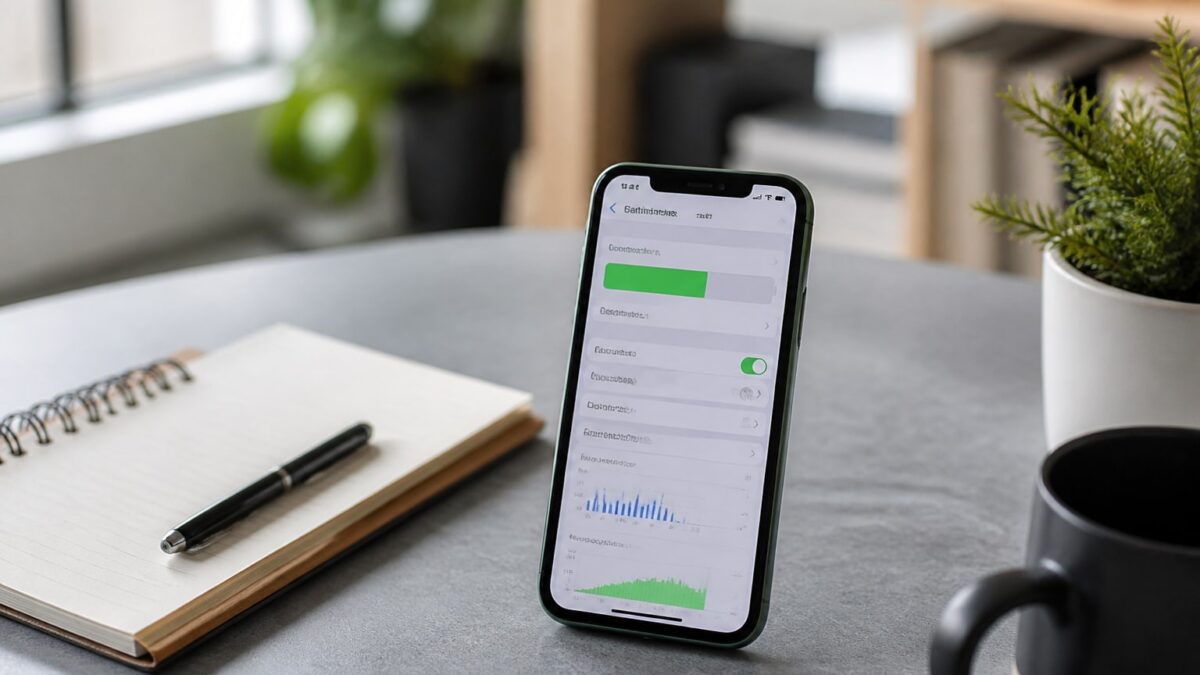
You leave your iPhone charged to 90% before going to bed. Seven hours later you pick it up and it reads 62%. No strange notifications, no calls, nothing. That loss while idle is not normal and, in most cases, the battery is not the problem: it’s five iOS settings you can check in under ten minutes.
This guide is aimed at iPhone running iOS 18.2 or later (the steps are practically the same since iOS 17). It works on any model from the iPhone 12 onward. If you’re still losing battery in standby after finishing, at the end I explain how to tell whether the problem is already hardware.
What idle consumption is normal and what isn’t
A healthy iPhone, with the screen off and face down on the table, should lose between 0.5% and 1.5% per hour. Over an 8-hour night that means a drop of 4 to 12 points. If you go from 90% to 60% while you sleep, you’re losing almost 4% per hour. Something is working in the background that shouldn’t be.
Before touching anything, do this diagnostic test:
| Situation | Expected loss / hour | Diagnosis |
|---|---|---|
| Screen off, face down, Wi-Fi on | 0.5% – 1.5% | Normal |
| Airplane Mode on all night | 0.1% – 0.5% | Normal |
| Screen off, face up | 1% – 2% | Normal (Always-On Display on Pro) |
| More than 3% / hour while idle | — | An app or setting is consuming |
| More than 2% / hour in Airplane Mode | — | Possible battery problem |
The key is in Airplane Mode. If it also loses a lot in airplane mode, the problem is no longer network or background apps. It’s the cell.
Setting 1: Background App Refresh
This is the number one suspect. Apps like Gmail, Outlook, Telegram, WhatsApp or any social network wake up every few minutes to sync data. Each wake-up consumes CPU and radio.
Go to Settings → General → Background App Refresh. There are two things to look at there:
- At the very top, the Background App Refresh selector. You can limit it to Wi-Fi (recommended) instead of Wi-Fi and mobile data.
- Below, the full list of apps with a toggle for each.
Don’t turn everything off. Keep the ones you really need active (messaging, work email, smart-home apps). Turn off games, shopping apps, banks you already check manually, and any social network you don’t use daily. Facebook and LinkedIn are notorious for waking up far more than their usefulness justifies.
Setting 2: always-on location
Some apps ask for location “Always” when “While Using the App” would be enough. And “Always” means the GPS can wake up while idle.
Path: Settings → Privacy & Security → Location Services. Review the list app by app. Set to While Using everything that isn’t strictly necessary (navigation, fitness, Find My). Weather, banking, shopping and social apps don’t need continuous location.
While you’re there, scroll to the very bottom and go into System Services. Turn off Apple Ads Based on Location, iPhone Analytics and Significant Locations if you don’t use them. That last one keeps a log of where you go and consumes more than it seems.
Setting 3: push notifications and email
Every notification lights up the screen (even for a second), vibrates and wakes the radio. Multiply that by 200 notifications a day and you understand the hole.
In Settings → Notifications, turn off the ones that add nothing: games, shopping apps, promotions. Keep only the ones you actually read.
For email, the silent culprit is usually Settings → Apps → Mail → Accounts → Fetch New Data. If you have several accounts on Push, switch them to Fetch every 15 or 30 minutes, or directly to Manual. Gmail via IMAP is especially heavy on push.
Setting 4: widgets, Siri and Always-On Display
Lock screen widgets refresh in the background. If you have six active widgets (weather, stocks, calendar, AirPods battery, activity, reminders), six processes wake up periodically.
Remove the ones you don’t look at. Long-press the lock screen, edit and delete what’s unnecessary.
On iPhone 14 Pro, 15 Pro and 16 Pro, check Always-On Display: Settings → Display & Brightness → Always-On Display. You can keep it and hide the wallpaper and notifications to reduce consumption, or turn it off entirely if it isn’t worth it to you.
And Siri: in Settings → Siri, turn off Listen for “Siri” if you don’t use it. A permanently active microphone adds up.
If after all this you suspect a specific app, you have a detailed guide on how to identify apps that drain the iPhone battery without you noticing.
Setting 5: Low Power Mode scheduled at night
Turning on Low Power Mode manually every night is a hassle. It can be automated with the Shortcuts app:
- Open Shortcuts → Automation tab → +.
- Choose Time of Day, set your bedtime (e.g. 00:00).
- Action: Set Low Power Mode → On.
- Create another automation at 07:00 with Off.
During those hours, iOS reduces background activity, lowers the email fetch frequency and limits visual effects. You can find the details of what you lose and what you don’t in our guide on when to enable Low Power Mode and what it really sacrifices.
How to tell it’s no longer software: it’s the battery
Do this test. Charge the iPhone to 100%, turn on Airplane Mode (Control Center → airplane icon) and leave it untouched for 8 hours.
- If it loses less than 5% in total: the battery is fine, the problem was software.
- If it loses more than 15%: the cell is degraded.
Check its health in Settings → Battery → Battery Health & Charging. Below 80% maximum capacity iOS already flags it as “service recommended”. The official replacement at Apple Spain costs between €109 and €129 depending on the model (as of November 27, 2026; it’s worth checking beforehand since it varies).
Frequently asked questions
Does the iPhone lose battery when it’s off? Yes, a little. Completely off it loses around 1-2% per day due to the cell’s chemical self-discharge. If it loses much more, the battery is degraded.
Do the “Find My” features use a lot when it’s off? Since the iPhone 11, Find My works even when off using ultra-low-power Bluetooth. The drain is minimal (less than 1% per day) and it’s the reason recovering a lost iPhone is possible. Don’t turn it off.
Do I have to reset the iPhone if nothing works? Before restoring, try Settings → General → Transfer or Reset iPhone → Reset → Reset All Settings. It doesn’t delete data, it only returns system settings to their initial state. It fixes many phantom drains after updating to a major iOS version.
Does cold affect battery when idle? Yes. Below 5 °C the cell performs worse and can show erratic percentages. If you leave the iPhone in the car in winter, don’t be surprised to see large drops that “recover” when it warms up.
Is it worth turning off 5G to save battery? In Settings → Mobile Data → Options → Voice & Data set it to 5G Auto. That option lets the iPhone decide when to use 5G and when 4G as appropriate. Forcing 5G does penalize the battery somewhat in areas with marginal coverage.