How to Use Preview on Mac to Sign PDFs, Fill Out Forms, and Combine Files
A practical guide to getting the most out of Preview on macOS: signing PDFs with your trackpad or iPhone, filling in forms, and merging several files into one without installing Adobe.
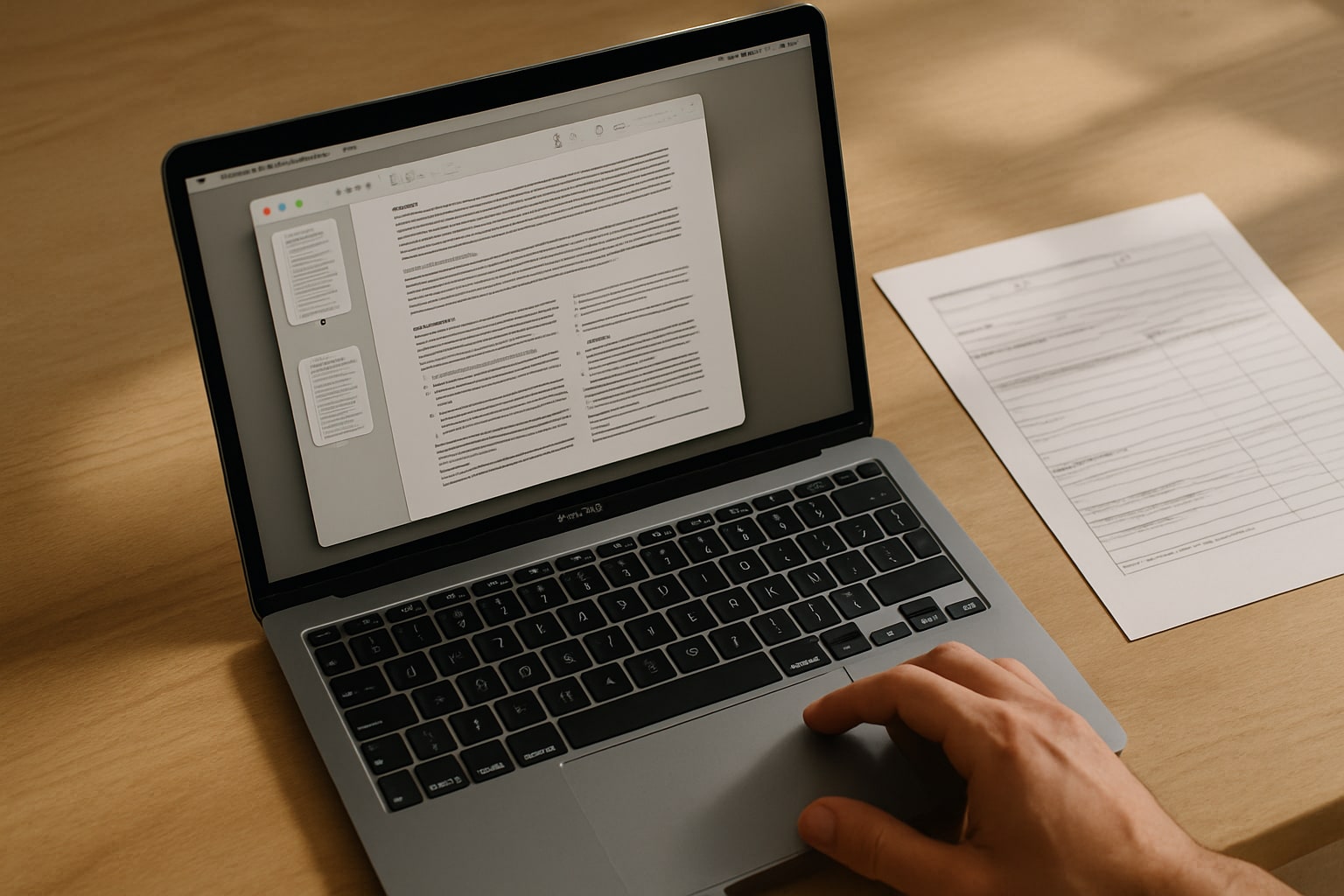
Preview is one of those apps that have been on every Mac forever and that almost nobody uses to its full potential. You open it to look at an image, close it, and move on. But since macOS Sequoia 15.1 (and in earlier versions too, really, for years now) it does practically everything most people need from a PDF editor: signing, filling in forms, combining files, rearranging pages, exporting, password-protecting.
If you’ve considered paying for Adobe Acrobat just to sign four contracts a year, stop. What you already have installed is more than enough. In this guide I’ll walk you through the complete workflow, with the shortcuts and exact menu paths. Estimated time to master the basics: 15 minutes.
Prerequisites
- A Mac with macOS Sonoma 14 or later (ideally macOS Sequoia 15.1 or higher for stability with forms).
- The Preview app (it comes installed by default; if you’ve deleted it, it can be recovered from another account or by reinstalling the system).
- Optional but recommended: an iPhone or iPad running iPadOS 17 or later if you want to sign with your finger or Apple Pencil.
- A trackpad if you want to sign directly on the Mac (MacBooks have one; on iMac or Mac mini you need a Magic Trackpad).
No accounts, subscriptions, or plugins to install. Everything works offline.
Opening a PDF in Preview
By default, many Macs open PDFs in Safari or in Adobe if you have it installed. To force Preview:
- Right-click the PDF in the Finder.
- Open With → Preview.
If you want it to be the default permanently:
- Right-click any PDF → Get Info (or ⌘ + I).
- In the Open with section, select Preview.
- Press Change All… and confirm.
From then on, double-clicking will always open in Preview.
Basic interface: the markup toolbar
With a PDF open, click the marker icon (or press ⇧ + ⌘ + A) to show the markup toolbar. This is where 90% of what you’ll use lives:
- Text and rectangular selection.
- Shapes (arrows, circles, boxes).
- Text box.
- Signature.
- Color, line weight, and fill settings.
- Rotate and crop.
In the left sidebar (⇧ + ⌘ + D to show it in thumbnail mode) you have all the pages. From there you can reorder, delete, or add content.
How to sign a PDF on Mac step by step
This is where Preview shines. You have three ways to create a signature. They are saved on the Mac and you can reuse them forever.
Signing with the trackpad
- Open the PDF and press ⇧ + ⌘ + A to open markup.
- Click the signature icon (a flourish).
- Create Signature → Trackpad.
- Press Click here to begin and sign with your finger on the trackpad.
- Press any key when you finish, then OK.
Tip: sign slowly with your finger resting fully on the surface. It comes out cleaner than rushing.
Signing with the camera
Useful if you already have your signature on paper and want to digitize it:
- Sign on a blank sheet with a black marker.
- In Preview: Signature → Create Signature → Camera.
- Hold the paper in front of the webcam, aligning the signature with the blue line.
- When it detects it, press OK.
The result is surprisingly decent, although the trackpad tends to be sharper.
Signing with iPhone or iPad (my favorite method)
If you have an iPhone nearby, this is the best option:
- Signature → Create Signature → iPhone or iPad.
- Select the device.
- A blank screen opens on the iPhone: sign with your finger or with an Apple Pencil if it’s an iPad.
- Tap Accept on the iPhone.
The signature appears instantly on the Mac. With an Apple Pencil it looks professional: variable pressure, smooth stroke.
Inserting the signature into the document
- Click the signature icon in the markup toolbar.
- Select the saved signature.
- It appears in the center of the PDF. Drag it into place.
- Resize it with the corners.
Save with ⌘ + S. Done.
How to fill in PDF forms on Mac
There are two types of forms. Preview handles both.
Forms with interactive fields
Recognizable ones (from the bank, tax agencies, etc.) have fields that highlight on their own:
- Open the PDF.
- Click any field. The text cursor activates.
- Type. Use Tab to jump to the next field.
- For checkboxes, one click checks or unchecks them.
- ⌘ + S to save.
Tip: if the form doesn’t behave properly (common with PDFs generated by older government systems), use the “flattened PDF” option explained below.
“Flat” forms without interactive fields
Many forms are scans or PDFs without programmed fields. Preview works here too:
- Open markup (⇧ + ⌘ + A).
- Select the text box tool (the “T” icon with a frame).
- Click on the line where you want to write.
- Type. Adjust typeface and size with the A icon in the toolbar.
- Repeat for each field.
For checkboxes, use the shapes tool and insert a filled square or an X with the text tool.
How to combine PDFs on Mac with Preview
Merging several PDFs into one without installing anything:
- Open the first PDF in Preview.
- Show the thumbnail sidebar: View → Thumbnails (or ⌥ + ⌘ + 2).
- Drag the second PDF from the Finder directly into the sidebar.
- Drop it at the position where you want it inserted (before, after, or between specific pages).
- Repeat with whatever files you need.
- File → Export as PDF to save the combined result.
Important: if you press ⌘ + S, you’ll save over the original PDF. If you want to keep the first one intact, use File → Duplicate (⇧ + ⌘ + S) before starting.
Rearranging and deleting pages
With the thumbnail bar open:
- Drag a thumbnail up or down to move it.
- Select + Delete removes the page.
- ⌘ + click for multiple selection.
- Edit → Insert → Page from File… adds only specific pages.
Exporting, compressing, and protecting the PDF
Preview gives you three useful things when exporting:
File → Export… or File → Export as PDF…
- Quartz Filter → Reduce File Size: compresses heavy PDFs. Beware, it degrades image quality. For text documents, perfect. For PDFs with photos you plan to print, no.
- Encrypt: tick the box and set a password. The resulting PDF will ask for that password to open.
- Permissions: in recent versions you can restrict printing or copying (in the advanced export options menu).
For very heavy PDFs where the Quartz filter destroys quality, there’s an alternative via Terminal with sips, but for most cases the standard filter is more than enough.
Common problems
The signature looks pixelated when printed. Redo it with the iPhone or iPad. The trackpad and camera give lower resolution.
The PDF opens in Safari or Chrome instead of Preview. Change the default: right-click → Get Info → Open with → Preview → Change All…
Form fields don’t accept text. The PDF is protected or it’s a scanned image. Use the text box tool in markup as an alternative.
The order gets lost when combining PDFs. You’re dragging into the main panel instead of the thumbnail sidebar. Enable it with ⌥ + ⌘ + 2.
I save changes and they don’t apply. Preview has automatically saved to the original for years. If you don’t see the changes, close and reopen. If you need to keep the original, Duplicate first (⇧ + ⌘ + S).
Alternatives if Preview falls short
Preview covers basic home and professional use. For more demanding cases:
- PDF Expert (Readdle, €79.99 perpetual license or €6.99/month): real text editing inside the PDF, OCR, better annotation manager. Worth it if you handle PDFs daily.
- Adobe Acrobat Pro (€19.45/month): industry standard if you work with complex forms, certified digital signatures (eIDAS), or workflows with clients who require Acrobat.
- Apple Notes: if you only want to sign quickly from the iPhone, dragging the PDF into a note and signing it with your finger works surprisingly well.
If you automate document workflows a lot, take a look at how to use Shortcuts on macOS Sequoia to automate tasks with folders and files: you can build a shortcut that combines, compresses, and renames PDFs in one click.
Frequently asked questions
Does the Preview signature have legal validity? It’s a simple electronic signature, valid for many private contracts in Spain. For procedures with public administration or contracts requiring qualified signatures, you need a digital certificate (FNMT, Cl@ve) or services like Autofirma or VidSigner.
Can I use Preview to edit the text of a PDF that’s already written? No. Preview adds elements on top of the PDF (text, shapes, signatures) but does not edit the original text. For that you need PDF Expert or Adobe Acrobat.
Can a saved signature be deleted? Yes. In the signatures dropdown of the markup, hover over the signature and press the X that appears. It’s deleted from the Mac.
Does Preview work with password-protected PDFs? Yes. It asks for the password when opening. If you have editing permissions, you can modify it. If the PDF is locked for editing, you can’t.
Can I sign a PDF from the iPhone without going through the Mac? Yes. Open the PDF in Files, tap the markup icon (marker), tap + → Signature. It’s the same system, and signatures sync via iCloud if you’re signed in on both devices.