How to Use Safari 18 on Mac: Profiles, Tab Groups and Essential Extensions
Practical guide to Safari 18 on macOS Sequoia: how to separate work and leisure with profiles, organize tabs by project, and which extensions to install without compromising privacy.
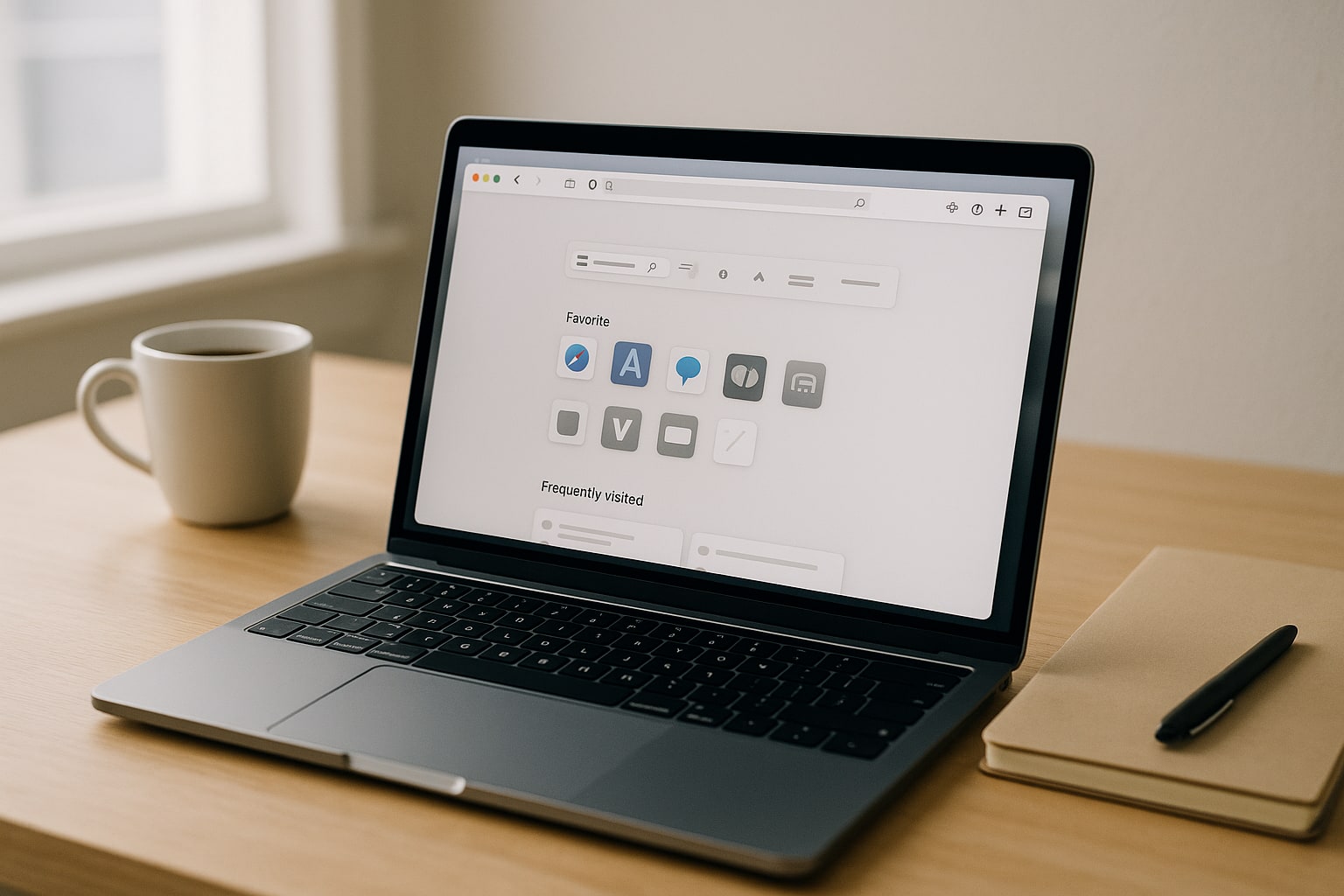
Safari 18 arrived with macOS Sequoia 15 and although Apple sold it as a refinement update, it has three blocks that really change the day-to-day if you use it as your main browser: profiles, improved tab groups, and the new Highlights and Distraction Control features. Nothing revolutionary, but if you’re coming from Chrome or have been using Safari for years without touching the advanced settings, there’s real substance here.
This guide is for anyone who uses the Mac as a work tool and wants to get the most out of Safari without installing Chrome out of habit. It will take you about 20 minutes to set everything up.
What’s new in Safari 18 on macOS Sequoia
The ones that really matter are four:
- Highlights: Safari detects relevant information on the page (addresses, summaries, contact details) and displays it in a side panel. It requires Apple Intelligence to be enabled, and in Spain it remains limited in some features depending on your regional and language settings.
- Distraction Control: you can hide specific elements of a website (persistent cookie banners, newsletter pop-ups, entire sections) without installing a blocker.
- Redesigned Reader Mode: cleaner, with an automatic table of contents in long articles.
- Sharing tab groups: real collaboration, without relying on external services.
What it does NOT include: native support for installing Chrome Web Store-style extensions. You’re still limited to the Mac App Store for signed extensions.
Prerequisites
- macOS Sequoia 15.0 or later. Safari 18 is not available on Sonoma as a standalone update.
- Macs compatible with Sequoia: MacBook Air/Pro with Apple Silicon or Intel from 2018 onward, iMac 2019+, Mac mini 2018+, Mac Studio and Mac Pro 2019+.
- Signed in with your Apple ID if you want to sync profiles and tab groups across devices.
- For Highlights and other AI features: a Mac with an M1 chip or later and Apple Intelligence enabled in Settings.
Check the version from the Safari → About Safari menu. It should show Safari 18.x.
How to create profiles in Safari 18
Profiles are the best way to separate contexts. I use three: Work, Personal and Client X (when I’m working on a long project with many tools open). Each profile has its own cookies, history, bookmarks, active extensions and tab groups.
Difference between a profile and private browsing
They are not the same. Private browsing saves nothing when you close the window. A profile saves EVERYTHING, but isolated from the other profiles. Think of a profile as an independent user account within Safari.
Steps to create a new profile
- Open Safari.
- Go to Safari → Create Profile in the menu bar. If it’s your first profile, you’ll see the welcome screen “Get started with profiles”.
- Give it a name (for example, “Work”).
- Choose a symbol and a color. This isn’t just cosmetic: it will appear in the window so you can see at a glance where you are.
- Check whether you want to create an independent bookmarks folder. Recommended: yes.
- Click Create Profile.
A new window with that profile active will open automatically. In the top-left corner you’ll see the symbol you chose.
Switching between profiles
Three ways:
- File → New Window [profile name].
- Right-click the Safari icon in the Dock → choose the profile.
- Shortcut: ⌘ + N opens a window in the current profile. To switch, use the File menu.
What is and isn’t shared between profiles
| Item | Shared |
|---|---|
| History | No |
| Cookies and sessions | No |
| Bookmarks | Optional (when creating the profile) |
| Extensions | Yes (activated per profile) |
| iCloud Keychain passwords | Yes |
| Tab groups | No |
This last point is key: if you have a “Client Documentation” group in the Work profile, you won’t see it in Personal. Well thought out.
Tab groups: how to really organize them
Tab groups have existed since Safari 15, but Safari 18 refines two things: sync with iPhone and iPad is more reliable, and you can now share a group with another person and edit it at the same time.
Creating a tab group
- Open the sidebar: View → Show Sidebar or ⌘ + Shift + L.
- At the top, click the + icon next to “Tab Groups”.
- Choose between “New empty group” or “New group with [X tabs]” (use the ones you currently have open).
- Name it.
A workflow that works well: one group per active project. I have one called “Q3 Invoicing” with the bank’s website, the invoice manager, Numbers on the web, and the tax agency’s website. When I finish, I don’t close them. I close the group. When I come back, I open it and everything is just as I left it.
Sharing a tab group
Requires the other person to use Safari 17 or later and have iCloud enabled.
- Right-click the group name in the sidebar.
- Share Tab Group.
- Add contacts (Messages, Mail, AirDrop).
- Choose permissions: read-only or editing.
Useful for one-off collaborations. For ongoing work with large teams, a Notion-style manager is still more convenient.
Pinning tabs within a group
Right-click the tab → Pin Tab. It stays on the left side of the bar, showing only the favicon. Very useful for Gmail, Slack or the calendar within the Work group.
Highlights and Distraction Control: what they really do
Highlights
When you open a website with structured information (a restaurant listing, a long article, a product page), Safari shows a small highlight icon in the address bar. Tapping it brings up a summary: address, phone number, opening hours, or a summary of the text if it’s an article.
In practice, it works well on English-language sites and fairly well on Spanish ones. On a TripAdvisor listing it pulls out the address and phone number directly. On a local blog, sometimes it doesn’t appear at all. It keeps improving with updates.
To enable it: Safari Settings → General → Show Highlights. You need Apple Intelligence enabled in System Settings → Apple Intelligence & Siri.
Distraction Control
This one won me over. It’s used to hide specific elements of a website persistently.
- On the site you want to clean up, click the page menu icon (to the left of the address bar).
- Hide Distracting Items.
- Move the cursor over the page. Elements get highlighted.
- Click the one you want to hide. Confirm.
Note: it’s not an ad blocker. Apple makes this clear. If a banner reloads with different content, it will reappear. It works for static elements: subscription boxes, cookie banners that keep insisting, “you might also like” sections.
To revert: same menu → Show Hidden Items.
Essential extensions for Safari 18
Extensions in Safari are installed from the Mac App Store, not from a website. That limits the selection compared with Chrome, but it also greatly reduces the risk of installing junk with abusive permissions.
These are the ones I use and why:
- 1Blocker (€2.99/month or €14.99 one-time per module). Ad and tracker blocker. Configurable at the rule level. Runs without slowing browsing because it uses Safari’s content blocking API, not a background process.
- Vinegar (€1.99 one-time). Replaces the YouTube player with the native HTML5 player. Goodbye video ads, hello real Picture-in-Picture.
- StopTheMadness Pro (€11.99). Stops websites from disabling keyboard shortcuts and right-click, or from opening junk redirects. If you work a lot with poorly built sites, it saves time.
- Raindrop.io (free, freemium). A serious bookmark manager, with tags and collections. Better than native bookmarks if you accumulate hundreds.
- Bitwarden (free). If you don’t want to depend on the iCloud Keychain or you share passwords with a team, the best open alternative.
To install them: App Store → search the name → Get. Then enable them in Safari Settings → Extensions.
A tip: review the permissions each extension requests before enabling it. On that same screen, Safari tells you which websites it can access. If a bookmark management extension asks for access to “all websites you visit”, be suspicious.
If you want to get more out of the Apple ecosystem for productivity, check out the guide on how to use Shortcuts in macOS Sequoia to automate tasks with folders and files, which combines very well with Safari for repetitive workflows.
Common problems
Profiles don’t sync with the iPhone. On iOS 18, go to Settings → Apps → Safari → Profiles and check that they’re also created there. Sync covers data within each profile, not the profile itself. You have to create it on both devices with the same name.
Highlights never appears. Check that you have Apple Intelligence enabled and that you’re on a compatible website. It doesn’t activate on short texts or sites with unusual structure.
An extension disappeared after updating. Safari 18 disables extensions that don’t comply with the new version of the API. Go to Settings → Extensions and if it’s still installed but disabled, it’s a developer issue. If it disappeared, reinstall it from the App Store.
Shared tab groups don’t update. Quit Safari completely (⌘ + Q) and reopen it. If it persists, check that iCloud Drive is enabled and that Safari has permission in System Settings → Apple ID → iCloud.
FAQ
Can I import my profiles and bookmarks from Chrome?
Yes. File → Import From → Google Chrome. It imports bookmarks, history and passwords, but not profiles as such: it merges everything into the current Safari profile. You’ll have to reorganize it by hand.
Does Safari 18 use less battery than Chrome on a MacBook Air M3?
Yes, and by quite a bit. In normal use with 10-15 tabs, Safari consumes between 20 and 30% less energy according to macOS’s Activity Monitor. That’s the main reason it’s still worth it on laptops.
Can I install Chrome extensions in Safari?
Not directly. Some developers publish Safari versions on the App Store, but there is no official or recommended method for porting Chrome extensions. Unofficial “converters” usually break with every update.
Does Distraction Control work in private mode?
No. Hidden element rules don’t apply in private windows by design, since those windows don’t store state.
Can I have the same tab group open on Mac and iPad at the same time?
Yes, it syncs in real time via iCloud. If you open a new tab within the group on the iPad, it appears on the Mac within seconds. Sync requires iCloud Drive to be enabled and a session with the same Apple ID.